
Tool versions: O!kurra Capital Defense EA 2.05 · OkurraButton · OkurraGlobal Required platform: MetaTrader 5 (current build) Time needed for first launch: 15–20 minutes
Table of contents
3.1 What you get 3.2 Distribution and subscription model 3.3 Requirements 3.4 Registration and downloading files from okurra.com 3.5 Installing the files in MetaTrader 3.6 MT5 permissions: AutoTrading and WebRequest 3.7 License key and online verification 3.8 Attaching the EA to a chart for the first time 3.9 How to tell everything is working 3.10 Most common startup issues
3.1 What you get
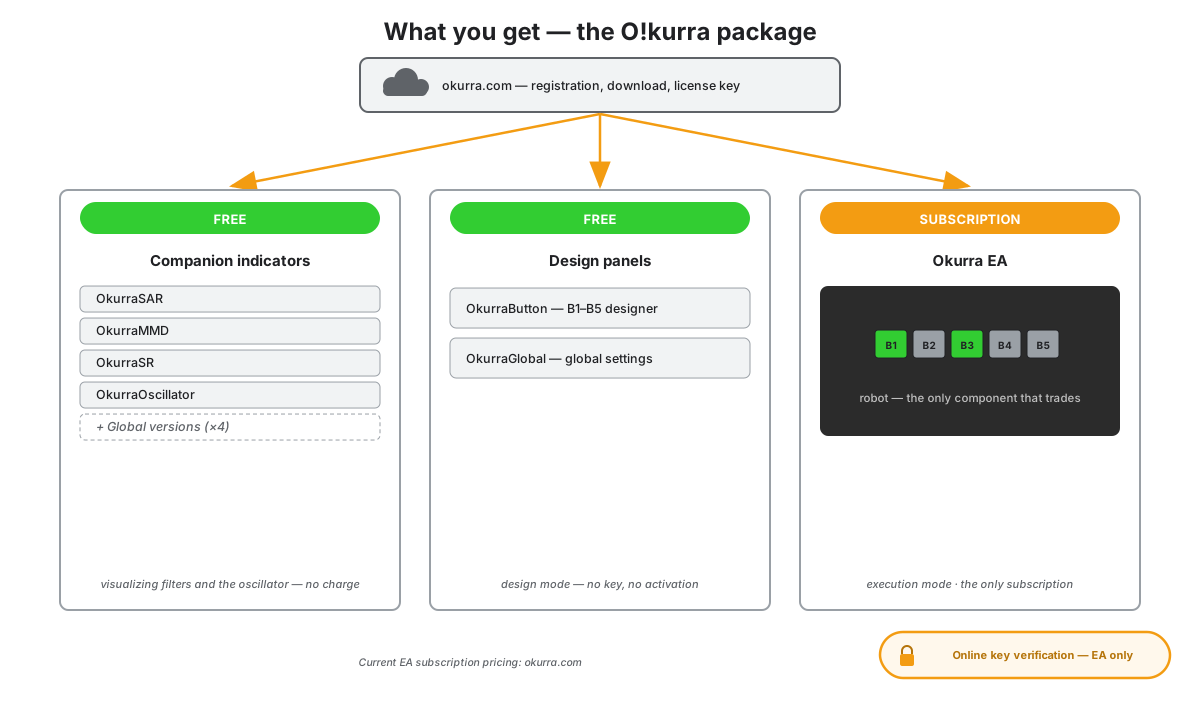
After registering on okurra.com you get access to the O!kurra ecosystem tool package. All the indicators — including both design panels — are free; only the EA requires a subscription (section 3.2). The full package is:
- Okurra EA (
Okurra EA.ex5) — the Expert Advisor, the heart of the set. The only component that trades — and the only paid one. Requires an active subscription and a license key. - OkurraButton and OkurraGlobal (
OkurraButton.ex5,OkurraGlobal.ex5) — two strategy design panels (design mode, chapter 2). Available free of charge — they work right after installation, with no key and no activation. - Nine companion indicators —
OkurraSAR,OkurraMMD,OkurraSR,OkurraOscillator(per-button versions),OkurraGlobalSAR,OkurraGlobalMMD,OkurraGlobalSR,OkurraGlobalOscillator(global versions) and — since release 2.03 —OkurraGlobalATR, the volatility-gate window (global version only). They visualize the filters, the oscillator and the gate on the chart. Available free of charge. - A user account on okurra.com — through it you manage your EA subscription, generate and view your license key, assign MT5 account numbers, and download updates.
- Access to the O!kurra chatbot on okurra.com — it answers questions about the tools, their configuration and the methodology in many languages.
Simple installation. Installation comes down to copying the tool files into MetaTrader (section 3.5) — there are no additional components to place in your system. License verification happens over a secure internet connection to okurra.com, based on the license key you paste into the EA settings (section 3.7).
The manual itself (this document) is free and publicly available — so you can get to know the tools before registering, or quickly look something up once you are a user.
3.2 Distribution and subscription model
The model is simple: all the indicators are free, you only pay for the EA — that is, only when you want to run automated execution.
All indicators — free. Eleven indicators: the two design panels (OkurraButton and OkurraGlobal) and the nine companion indicators (SAR, MMD, SR, Oscillator — per-button and global versions — plus the ATR volatility-gate window). The panels give you the full design mode — building configurations for the five buttons and the global settings, with saving to .set files. The companion indicators visualize the filters and the OKUR oscillator on price. Everything works right after installation — no key, no activation, no account. This is the natural entry point: you learn the methodology and design strategies before you subscribe to anything.
Okurra EA — the only subscription. The robot that actually trades is covered by a monthly subscription — it is the execution tool, and the most extensive one. The EA subscription includes license verification (key + online verification) and access to updates.
Current prices and EA subscription variants can always be found on okurra.com — the pricing policy may change, so the manual deliberately does not quote specific amounts. Check the offer directly in your user panel.
The practical consequence of this model: you can start completely free — observing the methodology on the companion indicators and designing full strategies in the panels — and only when you want to run automated execution on a demo account, reach for the EA. The only paid decision is that last one.
3.3 Requirements
Minimum platform build. The .ex5 files of every release are compiled on a specific MetaTrader build and will not run on an older platform. The required minimum build is always shown next to the download button on okurra.com. If your terminal is older, the tool will not load onto the chart and the Journal / Experts tab will show error 560 or the message “…has newer unsupported version, please update your client terminal” — the files are not corrupted, this is a platform version limit. Solution: update MetaTrader 5 (your broker always ships the current build; usually restarting the terminal with automatic updates enabled is enough) and try again. A caution when updating the tools: before you overwrite a working installation with the files of a new release, make sure your terminal meets the build requirement — overwriting on a too-old platform also disables your existing, working configuration (the old files have been replaced). Step-by-step diagnostics — chapter 22.2.
Operating system: Windows 10 or Windows 11 (recommended). MT5 also runs on macOS and Linux through compatibility layers (Wine, Crossover, Parallels) — the O!kurra tools will technically work in such an environment, but they are not officially tested there. If you use a Mac or Linux, we recommend running MT5 and O!kurra on a remote Windows server (VPS) — that is also the best solution from the standpoint of stable 24/7 operation.
Internet connection: required at EA startup for online license verification (WebRequest to okurra.com). After the first successful verification the EA stores a local token and keeps working even through short connection interruptions — subsequent verifications are cyclic (section 3.7). The indicators (panels and companions) require no connection at all — online verification and the okurra.com account concern the EA only.
Trading account: any MT5 account — demo or live, any broker. It is recommended that you do your first observations on a demo account — that is the unambiguous position of this manual and of the entire positioning of the tool as research-and-educational. The decision to eventually run it on a live account remains with the user and is made entirely at their own responsibility.
Instrument: O!kurra is designed with fast-moving markets in mind — indices (NAS100, US30, GER40 and related) and commodity instruments (XAUUSD and others). Technically it will work on any instrument your broker offers, but the default parameters and the examples in the manual are calibrated for these specific asset classes. If you want to test on other instruments (FX, stocks, crypto) — you can, but calibrating the parameters to the specifics of that instrument is essential.
Account type and order execution method
Several characteristics of your broker account affect how O!kurra behaves. You do not have to be an expert — it is enough to know they exist:
- Hedging vs Netting. A hedging account holds separate positions and allows BUY and SELL simultaneously on the same instrument; a netting account maintains a single net position per symbol. Some O!kurra mechanisms (BEa, the opposite hedge, parallel BUY and SELL buttons) assume hedging — that is the recommended account type. The tool will also work on netting, but opposite positions “collapse” into a single net one.
- Market vs Instant execution. With market execution the broker fills the order at the market price (ignores the deviation). With instant execution the broker honors the allowed price deviation (slippage) — too small = rejection / requote. That is why O!kurra lets you set the deviation for opening and closing (chapter 5).
- Stops / Freeze level. Some brokers require a minimum distance between the price and the SL/TP level. The EA respects this (SL tightening in Break Even / Trailing — chapter 9).
- Online vs offline. Part of the protection (virtual / stealth SL — chapter 9) works only while the EA is running and connected. Anyone who wants protection even with the terminal switched off — should use a real SL.
These concepts come back in the relevant chapters; we flag them once here because they explain why behavior can differ between brokers. Abbreviations and definitions — glossary (chapter 24).
3.4 Registration and downloading files from okurra.com
Step 1 — create an account. Go to okurra.com and register (email + password). The account is free — it immediately gives you access to all the free indicators (panels and companions) and to the chatbot.
Step 2 — the EA subscription (optional at this stage). The only paid item is Okurra EA — purchase the subscription when you want to run the robot. You can download the panels and the companion indicators without any subscription.
Step 3 — download the files. In the user panel, in the Download section, you will find the .ex5 files of the tools:
Okurra EA.ex5(with the EA subscription),OkurraButton.ex5,OkurraGlobal.ex5(always available),- the nine companion indicator files (always available).
Step 4 — generate a license key. In the okurra.com panel, in the license section, you will generate a license key in the format OKUR-XXXX-XXXX-XXXX-XXXX. You will paste this key later into the EA settings (section 3.7). You bind the key to the MT5 account number on which you will run the EA — details in section 3.7.
The
.ex5files are compiled — ready to run in MT5, no compilation in MetaEditor required. You copy them straight into the platform folders (section 3.5).
3.5 Installing the files in MetaTrader
Installation consists of placing the downloaded files in the appropriate MT5 platform folders. No additional components — just the tool files.
Step 1 — locate the MT5 data folder. In MetaTrader open the menu File → Open Data Folder. Windows Explorer will open in the directory where MT5 keeps its user files. This is where we will paste our files — into the appropriate MQL5\ subfolders.
Step 2 — place the EA in the Experts folder. Go to MQL5\Experts\. Copy Okurra EA.ex5 there. We recommend the subfolder MQL5\Experts\OKU\ — it keeps the files tidy; MT5 will find the EA regardless of the subfolder anyway.
Step 3 — place the indicators in the Indicators folder. Go to MQL5\Indicators\. Copy all the downloaded indicators there: OkurraButton.ex5, OkurraGlobal.ex5 and the nine companion indicators. We recommend the subfolder MQL5\Indicators\OKU\ — it keeps the files tidy; MT5 will find them regardless of the subfolder anyway.
Step 4 — restart MT5. Close and relaunch the platform. This ensures MT5 loads the new files into its registry. Without a restart the tools may not appear in the Navigator tree or may behave oddly.
After the restart, in the Navigator panel (shortcut Ctrl+N):
- in the Expert Advisors section you should see Okurra EA,
- in the Indicators section — OkurraButton, OkurraGlobal and the nine companion indicators.
If something is missing — double-check the path from steps 2–3 (sometimes a file ends up one folder too shallow or too deep). In Navigator you can right-click and choose Refresh.
Updating from the 1.xx releases (seven buttons) to 2.00
Release 2.00 reduces the number of buttons from seven to five (B1–B5) — chapter 1.4. The update itself is the usual file replacement (steps 2–4 above, always as a complete package: the EA + both panels + all the companion indicators), but when coming from a 7-button release take care of three things:
- Close the positions of buttons B6 and B7 before replacing the files. Release 2.00 does not manage positions opened by the former B6/B7 (magics
base+5andbase+6): it runs no Break Even or Trailing for them, does not count them into BEa baskets, daily limits or Close All. Simplest: let them finish on the old release (manually or via their SL/TP), then update. If they remain anyway — EA 2.00 will warn loudly at startup (a popup + a log entry naming the number of positions and the exact magics); you can then close them manually in the terminal (chapter 22.13). - Old 7-button sets load normally. The
B6_*/B7_*keys are silently skipped on load (that is how MetaTrader treats unknown names), and a trigger target pointing at B6/B7 is cleaned up — the EA logs it explicitly, and the panel does not carry such a target into new saves. The B1–B5 strategies from the file work unchanged. - Two settings changed their factory defaults — if your old set does not contain them, they will take the new, safe values after loading:
EA starts ENABLED= disabled (the robot starts with its switch OFF — you click ON deliberately, chapter 8.3) and the Price Movement master switch = disabled (chapter 18.11). A set that is meant to start on its own needs these keys set explicitly.
Updating from release 2.00 to 2.03
Coming from 2.00 is the usual file replacement (steps 2–4 above, always as a complete package — since 2.03 that is 12 files: the EA + both panels + nine companion indicators, because OkurraGlobalATR was added). Four things are worth knowing:
- Your 2.00 sets load unchanged. Release 2.03 removes and renames nothing — it adds 95 new settings, and every new module is off by factory default (Time Setups, chapter 19; the ATR volatility gate, chapter 10.6a). A set that does not contain those keys trades after loading exactly as it did on 2.00.
- One setting changed its factory default:
Keep stops on Server(the T. on Server group) is off by default since 2.03 — if your set does not contain this key, switching T. on Server off pulls the real stops from the server (chapter 9.10). A set that is meant to leave them there needs this key set explicitly to “on”. - Files saved on 2.03 loaded into an older robot. A set from the Creator or from a 2.03 panel carries a schema stamp newer than a 2.00 robot — the robot warns on load (the schema-stamp alert) and skips the keys it does not know. Update the files as a complete package and the warning goes away.
- The panels now have version numbers of their own (in release 2.03: OkurraButton 2.05, OkurraGlobal 2.09), while the companion indicators stayed at 2.00 — that is not a packaging mistake. The release number is the number of the EA and of the package; a complete set from one package always fits together.
Updating from release 2.03 or 2.04 to 2.05
Releases 2.04 and 2.05 ship together: if you have 2.03, you go straight to 2.05, and the changes described under release 2.04 in the release history apply to you as well. The update is the usual file replacement (steps 2–4 above, always as a complete package of 12 files: the EA + both panels + nine companion indicators), a terminal restart and loading your existing set (F7 → Load, chapter 7.6); chapter 23 lists the version numbers of all the tools. Four things are worth knowing:
- Your 2.03 and 2.04 sets load. Two settings are gone, and their keys in an old file are skipped silently:
B<n>_TSet_SettleMode(×5) andBEa_SuspendTSetTarget_WhileArmed— one rule for the shield and setup positions replaces them (point 3). There are 24 new keys (27 coming from 2.03, together with the three of 2.04); a set that does not contain them gets the factory values, almost all of them off or equal to the previous behavior (among others Zone Reach, the Hold a place queue, Target pull, the basket gross cap). - The only new key that changes the behavior of an old set:
TSet_SellTargetSpread_points= 5 — the target and stop of a SELL time setup get a 5-point spread allowance (0 = the spread at the activation). It concerns only sets with SELL time setups (Time Setups, chapter 19); together with the target counted from the open of the M1 candle, the results of such sets differ from 2.04 (chapter 19.7). Coming from 2.03 you also get the 2.04 keyGlobal_TimeSpanClock: the setup lifetime, the pause after EG/PT and the duration of a new zone count in market minutes by factory default (chapter 19.10; the old behavior = Clock minutes set explicitly). - Three changes in behavior without a new key — for everyone: Max Positions per Bar counts the openings in a candle, positions already closed included (chapter 9.8); a BEa basket locked by equal lots realizes at Auto BE Gain, not at zero (chapter 12.5); an armed shield withholds the virtual SL and TP of every position in its basket — buttons and setups, on both sides (chapters 12.6, 19.12).
- The set stamp. A file saved on 2.05 (the Set Creator, the OkurraGlobal panel) carries
SetSchemaRev=6150319; a 2.03 or 2.04 robot warns when loading it and skips the keys it does not know. A Set Creator file from 2.03 or 2.04 has an older stamp — on load a 2.05 robot shows “This .set predates a parameter change in Okurra…”: the set works; check the missing settings in the F7 window (chapter 7.6).
3.6 MT5 permissions: AutoTrading and WebRequest
The indicators (panels and companion indicators) draw on the chart without any special permissions. But the EA, in order to open and close positions and verify the license, needs two things enabled in MT5.
First — global AutoTrading. In the top MT5 toolbar there is a button with an icon resembling a red stop circle or a green play triangle. Click it until it turns green. The tooltip on hover will show “AutoTrading is enabled”. Without this the EA can be running, but it will not execute a single trade — every attempt will end with the error “Auto trading is disabled”.
Second — the WebRequest permission for okurra.com. This is how the EA verifies the license. Go to Tools → Options → Expert Advisors and:
- Check Allow WebRequest for listed URL.
- Add to the address list:
https://okurra.com.
Without this permission the EA will fail to connect to the verification server at startup and will report a license error (section 3.10).
In the same window it is worth checking that Allow algorithmic trading (the global permission for automated trading) is also checked.
Four permissions at once (from 2.05). Before the robot sends anything to the broker it checks four permissions: the terminal’s global AutoTrading, this robot’s Allow Algo Trading on the chart, the broker’s consent to robots on this account and the account’s right to trade (after logging in with the investor password the account is read-only). A missing one is named in the Experts journal, and a virtual pending waits instead of dying — the messages and what to do: chapter 22.2.
3.7 License key and online verification
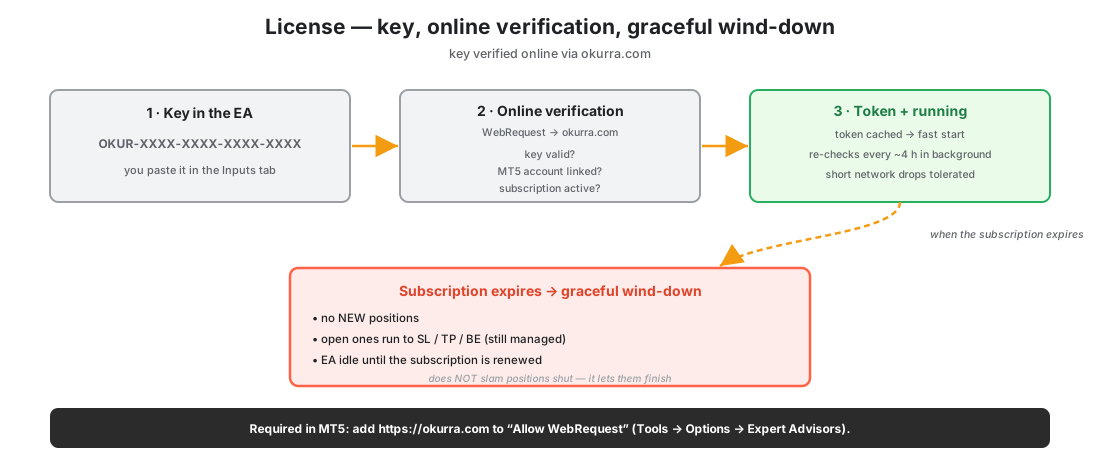
The EA verifies the license based on the license key (format OKUR-XXXX-XXXX-XXXX-XXXX) that you generated in the okurra.com panel (section 3.4) and paste into the EA settings.
How verification works:
Stage 1 — the key in the EA settings. When attaching the EA to a chart, in the Inputs tab, you paste your key into the License key field (the LicenseKey parameter). The field is empty by default — without a key entered the EA will display the alert “Enter your License key in EA inputs (get it from okurra.com panel)” at startup and will not start.
Stage 2 — online verification. On the first launch on a given account/computer the EA connects (via WebRequest) to the okurra.com server and checks:
- whether the key is valid and assigned to the MT5 account number you are on,
- whether the subscription is active and paid,
- whether there are no blocks.
Stage 3 — token and cache mode. After a successful verification the EA stores a short-lived token locally and from that moment starts instantly, without waiting for the network on every attach. Online verification repeats cyclically in the background: with valid access roughly every 4 hours (since EA 1.23 — light on you and on the system), and when a verification detects a problem the EA retries every few minutes — so after fixing the key or adding the account in the okurra.com panel everything returns to normal within minutes, no restart needed. The alert window about a persisting problem appears at most once every 4 hours (a line in the Experts journal is written on every attempt). Thanks to the token, short internet outages do not stop trading — the EA runs on a valid token and will perform the next verification when the connection returns.
Stage 4 — loss of validity (gentle wind-down). If during operation the cyclic verification detects a problem (e.g. an expired subscription), the EA displays an alert and stops opening new positions. Button pending orders are also removed — a pending order is a future entry, not an open position, so it must not open a new position after expiry. Importantly — positions that are already open are still fully managed: Stop Loss, Take Profit, Break Even and Trailing Stop work normally and carry every position to its planned close. The robot does not abandon the basket, nor does it close it abruptly — it lets it finish according to your settings. If the basket is at that moment under an armed BEa defense (chapter 12), the defense takes priority: the robot may keep adding defensive positions until it brings the basket to zero — defending an existing basket is management, not a new entry. Once the last position is closed, the EA remains on the chart in an idle state (generating no signals) until the subscription is renewed. To restore full operation, renew your subscription on okurra.com — at the next verification the EA will return to work.
Practical tips:
- Bind the license to the MT5 account number, not the broker name. The account number is unique — it identifies which account the EA is working on. You can have multiple accounts with the same broker; each is a separate license instance.
- A demo account and a live account are two different numbers. Most brokers assign a separate number to the demo account and a separate one to the live account — from O!kurra’s perspective those are two different accounts. Check on okurra.com whether your subscription covers both.
- When changing the MT5 account (e.g. moving from demo to real, or changing broker) — log in to okurra.com and make sure the new account number is linked to the key before you run the EA there.
In case of verification problems: first check the WebRequest permission for https://okurra.com (section 3.6), then the subscription status on okurra.com. If the technical configuration is correct and the problem persists — contact: [email protected].
3.8 Attaching the EA to a chart for the first time
Time to launch the robot for the first time. (If you are starting with design work in the indicators — that is chapters 4–7; here we describe launching the EA, i.e. execution mode.)
Step 1 — open a chart of the instrument. Pick the instrument you want to test on — we recommend XAUUSD on the M1 timeframe for the first observation, because that is how the default parameters are calibrated. You can also choose NAS100, US30 or another fast instrument — in that case the default parameters require calibration to the specifics of the market.
Step 2 — drag the EA onto the chart. In the Navigator panel find Okurra EA in the Expert Advisors section and drag it onto the chart area. The configuration window will open.
Step 3 — the Common tab. In the EA configuration window:
- Allow Algo Trading — check it. Without this the EA will not trade on this chart, regardless of the global AutoTrading.
- Leave the other fields at their defaults.
Step 4 — the Inputs tab. Here you will see all of the EA’s configuration parameters, grouped into sections (██████ Global ██████, ██████ Button 1 ██████ … ██████ Button 5 ██████, then Lot Volatility Normalization (ATR), Global Position Management, Filters - Global, Activation Zones, Target Lines, Break Even Auto, Stop Opposite Setup, Daily P/L Limits, Equity Guard, Profit Target, Trading Hours, T. on Server (real SL/TP), Panel Visibility, Interactive Control Panel, Button Triggers, Price Movement).
Two things to do here on the first launch:
- Paste the License key (section 3.7) — this is the only parameter you must fill in.
- (Optionally) Load a ready-made
.setwith the Load button, if you already have a designed configuration (chapter 7). If not — leave all the remaining values at their defaults.
Apart from the license key, on the first launch leave the default values. Just click OK — until you see what the EA looks like on the chart and how the control panel works, there is no point changing parameters. You will deal with configuration in chapter 8 (the panel) and 9 (button parameters).
Step 5 — the first seconds after startup. After clicking OK, a smiling face icon will appear in the top-right corner of the chart — a signal that the EA is active. In the Experts tab (at the bottom of MT5) you will see the startup logs:
- license verification messages — successful (token valid) or an error with a pointer to okurra.com,
- initialization messages — loading the parameters of the five buttons, configuration validation, initialization of the OKUR oscillators and the filters.
On the chart itself the O!kurra control panel will appear (by default in the top-left corner) — a vertical panel with several sections. It is the central tool for controlling the EA from the chart. Full description — chapter 8.
3.9 How to tell everything is working
After a successful launch you will see concrete, verifiable signs that the tool is working:
On the chart:
- In the top-right corner — the smiling face icon (an active EA in MT5).
- In the top-left corner — the O!kurra control panel with six sections visible one below another (Strategy Buttons, Visualization, Global Actions, Status Block, Target Blocks, Trade Markers). The text “O!kurra” in the title bar (the longer name “O!kurra Capital Defense” appears only in the EA file description).
- All buttons B1…B5 in the off state (gray background, “OFF”). This is expected — the EA does not activate buttons automatically at startup (unless a given button has
Initial Enabled = truein Inputs, which is disabled by default for all of them). - The EA switch in the panel’s top row shows a red
OFF, and the panel title reads “O!kurra - EA OFF” — this is expected too. Since release 2.00 the robot starts factory-disabled (theEA starts ENABLEDparameter = false): nothing will start on its own until you deliberately clickON. This is the safe initial state, not a malfunction (full description of the switch — chapter 8.3).
In the Experts tab (logs):
- A message confirming successful license verification.
- Messages about the initialization of the 5 buttons, the global filters and the mechanisms (BEa, EG, PT, DPL, Trading Hours, Triggers).
- No red error messages.
In the Trade tab (at the bottom of MT5):
- An empty position list (nothing has been opened yet — the buttons are off).
- An empty pending order list.
In the Status panel on the chart:
- A line with side counters in the format “SELL 0 +0.00” on the left and “BUY 0 +0.00” on the right (position count + the side’s current result), below it “From reset: +0.00”.
- Daily Profit: off, Daily Loss: off, Equity Guard: off, Profit Target: off — all limits disabled by default.
All of these are expected states. A fresh start, no trading, a clean slate for configuration.
If you see all of this — congratulations, the tool has been installed correctly. The next step is getting to know the control panel (chapter 8), and ultimately — designing your first strategy (chapters 4–7) and executing it.
3.10 Most common startup issues
A list of typical problems and solutions. Fuller troubleshooting — chapter 22.
The EA or an indicator does not appear in the Navigator panel.
Check: whether the .ex5 file is actually in the right folder — the recommended layout is MQL5\Experts\OKU\ for the EA and MQL5\Indicators\OKU\ for the indicators (the OKU subfolder keeps the files tidy; MT5 will find them without it too). Whether you restarted MT5 after pasting. In Navigator right-click → Refresh.
Error 560 / message “…has newer unsupported version, please update your client terminal”. Your MT5 terminal is older than the build the release files were compiled on (section 3.3). The files are not corrupted. Update MetaTrader 5 to the current version and restart the platform — the required minimum build is shown next to the download button on okurra.com. If you cannot update the platform, go back to the files of the previous release. More — chapter 22.2.
Alert: “Enter your License key in EA inputs (get it from okurra.com panel)”.
The License key field in the EA Inputs tab is empty. Paste your key (OKUR-XXXX-XXXX-XXXX-XXXX) from the okurra.com panel.
Alert about failed license verification / no connection.
Most common cause: https://okurra.com is missing from the WebRequest list (Tools → Options → Expert Advisors → Allow WebRequest for listed URL). Add the address. Also check your internet connection and — in the okurra.com panel — whether the subscription is active and whether this MT5 account number is linked to the key.
The EA does not trade even though a button is active (green). Most common causes: global AutoTrading disabled (the green play button in the MT5 toolbar), AutoTrading disabled on the chart (Common → Allow Algo Trading), an active filter blocking signals (e.g. MMD disagrees with the direction), or an Activation Zone that price is not inside. Most often the culprit is a filter — check the logs in the Experts tab.
The control panel does not appear on the chart. Check the Panel Visibility section in Inputs — a previous preset may have turned the display off. If the panel is outside the chart area (after a monitor resolution change or after being moved) — remove the EA (right-click → Remove) and attach it again; the panel will appear in its default position.
Red errors about being unable to open positions. This is usually a problem on the broker account side. Check: whether the account is active and logged in, whether the broker allows automated trading from this account, whether the instrument parameters are correct (minimum lot, lot step), whether the account has restrictions like “manual trading only”.
In the next chapter we enter design mode — starting with OkurraButton, the panel in which you lay out five independent strategies before they reach the robot.