
Tool version: O!kurra Capital Defense EA 2.05
The philosophy of this chapter. Most “problems” with O!kurra are not tool defects but a configuration working exactly as it was set — just differently than you expected. That is why, for every symptom, we first ask: is this really a failure, or designed behavior? Surprisingly often it is the latter.
A discrepancy between the manual and reality? If during diagnosis you notice that the manual, the chatbot’s answer and the EA’s actual behavior say different things — report it to [email protected] (chapter 1.9). The tools evolve dynamically and such reports help us keep the documentation in line with the code.
Table of contents
22.1 How to diagnose — universal principles 22.2 Installation and startup 22.3 License (key + online verification) 22.4 No signals 22.5 Pending orders do not fill 22.6 Position management (BE / Trailing) 22.7 BEa behaves unexpectedly 22.8 Account guardians (DPL / EG / Basket Max Loss / PT) 22.9 Trading Hours 22.10 Cross-button Triggers 22.11 EA panel 22.12 Performance 22.13 After a restart the EA “does not see” its positions (or it cut the pending orders) 22.14 Time Setups
22.1 How to diagnose — universal principles
Before you jump to a specific symptom — a few principles that resolve most cases.
Start with the logs. The Experts tab in MetaTrader (Ctrl+T → Experts tab) shows the EA’s messages — from initialization, through the reasons signals were rejected, to trading errors. Most problems leave a trace in the logs. Red lines, alerts, warnings about blocking filters — this is the first place to look.
Check the panel. The Status Block shows the current state; the info modes [B/G/S/T/C/H] (chapter 8) give a look “under the hood” — filter state (G), trading hours (T), the trigger map (C). The problem is often immediately visible in the right mode.
Turn on T. Levels and T. History. Visualization (chapter 20) shows where and in what context the EA opened and closed positions. Unintuitive behavior often becomes obvious on the chart.
Eliminate variables one at a time. When something does not work — reduce to the minimum (one button, defaults), see whether the problem disappears, and add components back one by one. Classic bisection — it always works.
Restart the EA, then MT5. Some problems are state that disappears after a reload. First remove the EA from the chart and drop it back on; if that does not help — restart the whole platform.
Keep a stable .set. Save every working configuration (chapter 7). When the current one starts behaving strangely, compare it against the last stable one to find the difference.
Everything on demo. First tests always on a demo account — some behavior depends on the broker and account type.
When nothing helps — contact support. Go to okurra.com. In your report include: instrument and timeframe, a description of the problem, a capture of the Experts tab from the moment of the problem, a screenshot of the panel and the chart. The more context, the faster the diagnosis.
22.2 Installation and startup
The tool does not appear in the Navigator
Symptom: you copied the file, opened MT5, and there is no O!kurra in Navigator (Ctrl+N) (under Expert Advisors for the EA or Indicators for the panels/indicators).
- Wrong file location. The EA must sit in
MQL5\Experts\(recommended subfolderMQL5\Experts\OKU\), indicators inMQL5\Indicators\OKU\. Open the folder via File → Open Data Folder and check the path (chapter 3). - No refresh. After pasting the files, right-click Navigator → Refresh, or restart MT5.
- File corrupted during transfer. Download again from okurra.com and paste.
Error 560 — “newer unsupported version” (terminal too old)
Symptom: the tool does not load onto the chart (it disappears right after dropping it, or never starts), and the Journal / Experts tab shows error 560 or the message ”‘…ex5’ has newer unsupported version, please update your client terminal”. Typical moment: right after replacing the files with a newer release.
- Cause: the
.ex5files of this release are compiled on a newer MetaTrader build than your terminal. This is a platform limit — not corrupted files and not a configuration error. The required minimum build is shown next to the download button on okurra.com; you can check your terminal’s build in Help → About. - Solution: update MetaTrader 5 — your broker always ships the current build; usually it is enough to close the terminal and start it again with automatic updates enabled. After the update, restart the platform and check the Navigator.
- If you overwrote a working installation with the files of a new release on a too-old terminal — together with the new files, your existing configuration stopped working too (the old files have been replaced). The fastest way back to work is updating the platform. Alternatively, reinstall the files of the previous release — the current release and one before it (N-1) are supported.
Alert “This .set predates a parameter change…” or “…generated for a NEWER Okurra release…” — the schema stamp
This is a warning, not an error — the robot keeps working. When loading a .set from the Set Creator — and, from 2.05, also one from the OkurraGlobal panel — the robot compares the input schema number stored in the file (SetSchemaRev) with its own (chapter 7.6).
- “…predates a parameter change…” — the file was made before the last change to the input list. The parameters added since are not in it: check them in the F7 window (the release changelog lists them in its “Parameter changes” section) or generate the set in the Set Creator again.
- “…generated for a NEWER Okurra release…” — the file comes from a newer release than the installed robot, so settings the robot does not know MetaTrader will not load. Update the EA with the complete set of files (chapter 3).
In the Experts journal the line [OKU SchemaStamp] Set stamped N; this EA: schema S, build B - … gives all three numbers.
The EA panel does not appear after startup
Symptom: the EA started (smiling face in the corner of the chart), but there is no panel.
- Panel outside the chart area. After a monitor resolution change or an earlier drag, the panel can end up out of view. Remove the EA and drop it back on — it returns to the default position.
- Control panel disabled in Inputs. Visibility of the control panel (buttons, actions, status) is governed by the field
Show interactive control panel(parameterUI_ShowControlPanel, group Interactive Control Panel). Note: this is a different switch thanShow info panel(Global_ShowStatsPanel) — that one controls only the extended info panel [i], not the control panel. Check whether a previous preset turned off the first one. - All sections hidden. If you hid all panel sections, only the bar remains. Enable at least Strategy Buttons (chapter 8).
Errors when trying to open a position
Symptom: red errors with MT5 codes in Experts (reject, invalid price, etc.).
- Algo Trading disabled. The green Algo Trading button in the MT5 toolbar must be on; when dropping the EA on the chart, tick Allow Algorithmic Trading in the Common tab. From 2.05 the robot checks this before sending and, instead of an MT5 error, writes what is missing (section below).
- Account does not allow auto-trading. Some accounts (certain prop/demo) block algo. Check with your broker. From 2.05 the robot names this missing permission too (section below).
- Not enough funds (margin). Even the smallest lot requires margin. Check the account equity.
- Symbol with a suffix. Gold may appear as XAUUSD, XAUUSDm, XAUUSD.r, etc. Make sure exactly which symbol you are working on.
The journal says “terminal AutoTrading is OFF” or another missing permission (from 2.05)
Symptom: the robot opens no positions, and the Experts journal shows one of the four messages from the table.
From release 2.05 the robot, before it sends an opening or a closing order, checks four trading permissions and names the one that is missing. Up to 2.04 it checked only the first two, and only before a close or a stop move — opens went out unchecked.
| permission | message in the journal | what to do |
|---|---|---|
| the Algo Trading (AutoTrading) button in the MT5 toolbar | terminal AutoTrading is OFF | switch the button on (Ctrl+E) |
| this robot’s Allow Algo Trading consent (F7 window, Common tab) | this EA's Allow Algo Trading (F7) is OFF | tick the consent in the F7 window |
| the broker’s permission for robots on this account | the BROKER does not allow Expert Advisors on this account (ACCOUNT_TRADE_EXPERT) | ask the broker |
| the account’s right to trade | the account is not allowed to trade at all (ACCOUNT_TRADE_ALLOWED - investor login?) | log in with the trading password, not the investor password |
The same in words: the robot checks the terminal’s AutoTrading button, this robot’s consent in the F7 window, the broker’s permission for robots on this account and whether the account may trade at all — and when one of them is missing, it writes in the journal which one.
What happens when a permission is missing:
- A pending order waits. Signals are created as usual, but the pending sends no order and stays in the queue:
[Permission@Realize] B1: pending level reached but terminal AutoTrading is OFF - realization held, the pending stays in the queue, and the decision journal (section 22.6) gets aREALIZE_BLOCKrow with the gateNoTradePermission. WithVirtualize Pending Ordersoff the pending does not go to the broker:[Permission@Place] B1: pending not placed at the broker - …; it stays in the queue and is placed when trading is permitted. When the permission is back, the pending carries on. - A market open does not go out. A Price Movement sensor, a re-entry, the first order of a Time Setups setup and the shield’s first hedge write one line with the reason, e.g.
[PM 1 open] B2 skipped: terminal AutoTrading is OFF. The setup’s first order then waits and tries again every minute (chapter 19.8). - Protection stands still, but nothing is lost. Closes and stop moves do not go out either — the “PROTECTION OFFLINE” alarm names the missing permission (section 22.6). From 2.05 the robot erases nothing meanwhile: the guardians, the BEa shield and the target lines wait, committed closes go out once the permission is back, and the Close … buttons say they sent nothing (section 22.6).
- A change of the account’s permissions has a journal line:
[OKU-DIAG][TRADE] ACCOUNT TRADE_BLOCKED: expert_advisors_allowed=0 trade_allowed=1 positionsTotal=2, and when it comes back… ACCOUNT TRADE_OK …(with the fieldLog virtual SL/TP orphan/desync diagnostics (live only)on, which it is by factory default). Regardless of that field, from 2.05 the robot writes one line when trading stops being allowed for any of the four reasons (also right after the robot starts without permission) and one when it is allowed again:[OKU] trading is not allowed (terminal AutoTrading is OFF) - nothing is sent: …and[OKU] trading is allowed again - …(section 22.6).
22.3 License (key + online verification)
O!kurra uses a license key in the format OKUR-XXXX-XXXX-XXXX-XXXX, verified online through a connection to okurra.com (chapter 3). You enter the key in the EA’s Inputs. Verification runs in the background (every few minutes); short network interruptions are tolerated.
Alert about no valid license / the EA generates no new positions
Symptom: the EA starts, but issues no new signals; a license message in the logs.
- Check the WebRequest whitelist. Tools → Options → Expert Advisors → Allow WebRequest for listed URL must contain
https://okurra.com. Without it the EA cannot verify the key (chapter 3). - Check the key. Entered exactly (format
OKUR-...), no spaces, still valid. - Check the EA subscription on okurra.com — is it active, did the payment go through. The subscription covers the EA only (chapter 3); all the indicators — the panels (OkurraButton/OkurraGlobal) and the companions — are free and the license does not apply to them.
- Check the internet connection. Verification requires access to okurra.com.
- The computer’s clock does NOT block verification. Online verification is not clock-sensitive — a wrong time zone or a drifted machine clock does not reject a valid license (the time gate was removed from the server on 2026-07-25; earlier editions of this manual described it as active). If the EA works on one computer but not another — most often a VPS — check on the failing machine, in order: the WebRequest whitelist (point 1), whether that machine’s MT5 account number is assigned to the key in the okurra.com panel (point 3), and whether the machine has an internet connection (point 4). A correctly set clock is worth having anyway (tidy logs and reports), but it is not what decides verification.
- Restart the EA after fixes so it retries verification.
Gentle wind-down — not a failure. When the subscription expires, the EA does not cut positions overnight. Only new signals are blocked; existing positions are still supervised — they reach their SL/TP, Break Even and Trailing work, manual closing and reactions to an opposite signal work. Pending orders (future entries) are deleted; the exception is a basket under an armed BEa defense — the defense may keep adding positions until it closes the basket to zero (chapter 12). The EA gradually becomes idle after the basket closes. This is a deliberate, gentle mechanism (chapter 3).
A note on demo. In learning/demo mode the license may be disabled — then this chapter does not apply to you. We describe the production state.
A release also has its own expiry date. Independently of the subscription, every distributed version of the tools has a built-in expiry date. The EA checks it once a day while running (not only at startup); after the deadline it enters the same gentle caretaker mode as on subscription expiry — it opens no new positions, deletes pending orders, but keeps managing open ones to their planned close (the BEa defense may close out the basket). Indicators and panels show an alert after the deadline and remove themselves from the chart. Solution: download the current release from okurra.com.
22.4 No signals
The button is enabled (colored), but no pending orders are created
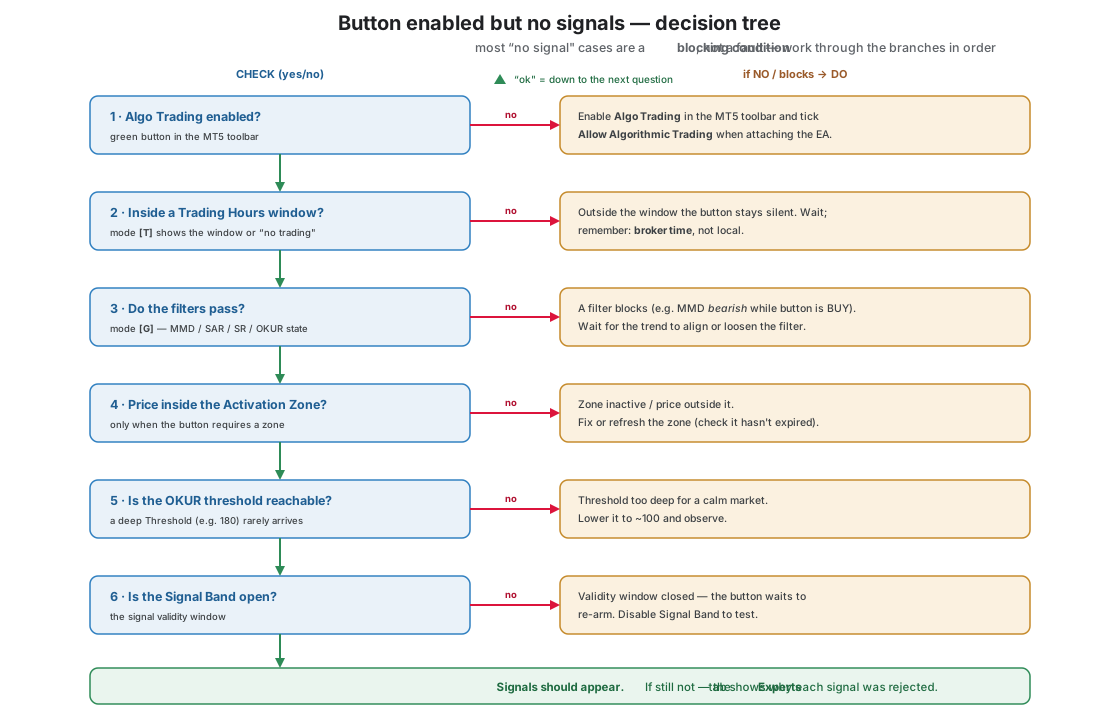
This is the most common report — and the cause is almost always some blocking condition, not a failure. Go through these in order (decision tree below):
- Is the EA switched on at all? Since release 1.27 the panel has its own master switch (chapter 8). Under OFF the button in the top row is red and the panel title reads “O!kurra - EA OFF” — nothing new will start, although open positions are still watched over.
- Algo Trading active? (section 22.2).
- Trading Hours. If trading hours are enabled, the button may be outside the window. Mode [T] shows the current window or “no trading” (chapter 16). Remember: broker time, not local.
- Filters. Mode [G] shows the state of the global filters. If MMD is bearish and the button is BUY with the MMD filter enabled — all BUY signals are blocked (chapter 10). The same for SAR / SR / OKUR Filter.
- Activation Zone. If the button has “Active only inside Activation Zone” and there is no zone or price is outside it — it will not enter (chapter 11). Check that the zone exists and has not expired.
- OKUR threshold. Threshold 180 is very deep — in a quiet market the oscillator may not get there for hours. Reduce it (e.g. to 100) and see whether signals start (chapter 9).
- Signal Band. If the validity window (Signal Band) has closed, the button waits for a new arming in the zone. Temporarily disable Signal Band to check (chapter 9).
- Zone Reach (from 2.05). If the button has
Zone Reach Enabled (far edge of the zone)on, there are no signals beyond the level in the fieldZone Reach (OKUR level; no signals beyond it)— also with the Signal Band window open. This is intended: that is how the far edge of the zone works (chapter 9.4). A reach on the wrong side of the threshold is switched off by the robot at startup with the line[OKUR Reach] B1: ZoneReach=300 invalid for zone BELOW / threshold 250 - it must lie below the threshold; reach disabled— the button then works without the far edge. The OkurraButton panel says the same after Apply, in red on the status line, e.g.B1: Zone Reach wrong side - ignored. - Logs. With logging enabled you will see the reason every signal was rejected — this usually removes all doubt. When the robot did not evaluate a signal at all, from 2.05 a
GATE_CLOSEDrow says so (below).
A button stays silent all day — a GATE_CLOSED row in the decision journal (from 2.05)
Four gates stop an enabled button before the robot even evaluates its signal. From 2.05 each of them leaves a trace: a GATE_CLOSED row in the decision journal (the gate column says which gate) and a signals paused: … line in the activity journal (section 22.6).
gate (gate column) | when it stops the signals | line in the activity journal |
|---|---|---|
Access | manage-only mode — the license or the release is not valid (section 22.3) | signals paused: manage-only (access) 2026.10.11 |
TradingHours | outside the Trading Hours window (chapter 16) | signals paused: outside trading hours 2026.10.11 |
RolloverPause | the pause after the day change (chapter 14) | signals paused: post-rollover pause 2026.10.11 |
NakedSL | the virtual SL is on and the button has Stop Loss (points, 0 = off) = 0 | signals paused: no stop at all under Virtual SL 2026.10.11 |
The same in words: a button does not evaluate signals in manage-only mode, outside trading hours, in the pause after the day change, and when there is no stop at all under the virtual SL. The robot writes the row once, when the gate stops the button, and repeats it only on the next day, after a change of state or after a robot restart — the journal does not bloat. Disabled buttons get no such rows.
A button switched itself off or on although nobody clicked
Since release 1.27 a button’s state is changed by more than your hand and the cross-button triggers. Check in order:
- A price-travel sensor (chapter 18). The button may have been switched off by the sensor named in its “switched OFF by” field, or switched on by the one in “switched ON by”. In the log look for
[PM N] fired:— next to it the sensor lists which buttons it acted on. All sensors ship disabled, so this only applies to a configuration where someone deliberately set them up. - The one-shot cycle (§9.13). If the button has “switch off when its own positions are closed” enabled, it retires itself once the last position closes — and that is intended behaviour, not a fault.
- The daily rollover. At the day reset hour the EA restores the buttons to their “Initial Enabled” state — a button switched on by hand in the evening may be back to off in the morning (and vice versa). Chapter 14. Exception: with the EA switched off, the restore does not happen (chapter 8).
- The account guardians. The daily limit, Equity Guard and Profit Target disable buttons when they fire — the most common cause of “everything was off in the morning”. Chapters 14 and 15.
- A terminal restart and a timeframe change (up to 2.04). Up to release 2.04 a terminal restart took a button back to “Initial Enabled”, and the first timeframe change after a restart could silently bring back the state from before the restart — even switch a button on. From 2.05 a button has the same state after a restart as before it, and every restore of a state other than the settings’ “Initial Enabled” has a journal line:
[Init] Button 3 restored ON from its last state - Initial Enabled (OFF) unchanged(chapter 8.4). The first start after updating to 2.05 may once bring back the last state from before the update — with the same line.
Signals are created, but almost all end in a loss
- Threshold too shallow — signals on “any old” pullback, not on real extremes. Increase the depth (e.g. 100 → 150).
- Wrong direction versus the market — the instrument is in a strong trend and a mean-reversion button “catches a falling knife”. Check MMD/SAR on M15+; if opposite — disable that side.
- Trigger too sensitive — Movement Correction 5 fires on the first micro-pullback. Increase to 10–15.
- No filter — every signal is “blind”. Enable the global MMD filter (chapter 10) to limit entries to the trend.
22.5 Pending orders do not fill
Pending lines are visible, but positions never appear
- Pending distance too large. The pending order sits too far from price and is not touched in any reasonable time. Reduce “Pending Stop/Limit Distance” (chapter 9).
- Broker spread. At certain hours (session open, news releases, weekend) the spread widens; a pending fills only when the relevant side of the price touches it. Check the current spread. A refusal for this reason is in the log (
Spread … > MaxSpread …, skipping realization) and, since EA 2.03 rev 0266, in the decision journal as aREALIZE_BLOCKrow with gateSpread— so the entries the spread took can actually be counted. - Outside trading hours. Since EA 2.03 rev 0265 a level touched outside a Trading Hours window opens no position — the pending waits for the window to open (log
[Hours@Realize], journal gateTradingHours). Details: chapter 16.6. - A missing trading permission (from 2.05). A level touched without one of the four permissions (section 22.2) opens no position — the pending stays in the queue and waits until the permission is back (log
[Permission@Realize], journal gateNoTradePermission).
A virtual pending has no broker ticket — and that is not a fault. In virtual mode (the default) a pending order lives only in the robot’s memory: it is not in MetaTrader’s Trade tab, it has no order number, and you will not find it in the history as an order. The robot watches the level itself and, when price touches it, sends a market order. That is why the ticket — and the own-registry entry — belongs to the position created by the fill, never to the pending. In the log the cycle reads:
Pending registered: btn=… ACTIVEat registration, then anOPEN_OKrow withdetail=realizein the decision journal once the level is touched. If you are looking for the pending in the broker’s window and cannot see it, check whether virtualization is on (chapter 7.9) — with it off, pendings do go to the broker and carry ordinary numbers.
The pending disappeared, but no position was created
- Not enough funds (margin). The log usually shows “Not enough money”. Reduce the lot or add funds.
- Spread too wide at the moment of fill — the broker rejects the order (invalid price). Typical around news releases.
- Broker position limit (max simultaneous positions per account/symbol). Check with your broker.
The position opened with a different SL/TP than configured
- Broker’s minimum stop level. SL/TP cannot be closer to price than the broker’s threshold. If your SL is too close, the broker rejects/modifies it. Check: right-click the symbol → Specification → Stops level.
Pending orders at the broker disappeared after an EA restart
- This is designed behavior, not a failure (since EA 1.11). With real pendings (virtualization disabled), the EA at startup deletes its own pending orders left over from the previous run — a pending “orphaned” by a restart could fill days later in a different market and open a position without a valid context. Look for the
[StalePendings]tag in the log. Fresh pendings from the current session are not touched; new ones will be created from the buttons’ current signals. Details: chapter 9.7.
22.6 Position management (BE / Trailing)
Mind the two levels. Break Even and Trailing from chapter 9 work per individual position. BEa from chapter 12 works on the whole basket of a direction. These are different mechanisms — do not confuse them.
Break Even (per position) does not move the SL
- The position has not reached the BE start threshold. BE arms only when the position is in profit by “Break Even Start”. Check the value (chapter 9).
- No SL to modify. If the position was opened without an SL, there is nothing to move — set a sensible Stop Loss per button.
- Broker limit (stops / freeze level). With some brokers, modifying an SL too close to price was rejected and BE “did not work” — inconsistently across accounts. The EA now pushes the SL out to the broker’s minimum distance, and when even that fails (price inside the freeze zone) — it closes the position as an emergency at market and raises an alert (popup + log). If you see such alerts, check the instrument’s stops/freeze level (chapter 9).
The Trailing Stop does not follow price
- Price has not reached the Trailing start threshold. Trailing starts only after “Trailing Start” is exceeded (chapter 9).
- BEa closed the basket earlier. BEa manages the whole direction independently; if it closes the basket before Trailing arms — that is natural, not an error.
The position does not close on the virtual (stealth) SL
- A former problem — already fixed. Virtual SL/TP is now supervised reliably on every account type (positions recognized by a persistent ID). If on an older version “price reached the SL and the position did not close” — update the EA (chapter 9).
- The EA must be online. Virtual SL works only with the EA running and connected — with the terminal closed it will not fire (it does not exist at the broker). If you want offline protection → use a real SL (disable virtual mode in OkurraGlobal).
- Orphan alert. A popup “position vanished without a close / protection lost” means an anomaly on the broker side — check the account manually (chapter 9).
Alert “PROTECTION OFFLINE” — a missing trading permission
Symptom: a line in the Experts journal starting with [O!kurra …] PROTECTION OFFLINE, repeated at most once a minute, saying the EA cannot close positions or move stops. It shows as a popup when the Protection Offline Popup cell is on (chapter 5.5).
It is not the broker rejecting orders — the robot is missing a trading permission. Before the EA closes a position or moves a stop by Break Even or Trailing, it checks the AutoTrading button in the MT5 toolbar and the “Allow Algo Trading” consent in this EA’s settings, and from 2.05 also the broker’s permission for robots on this account and the account’s right to trade (section 22.2). When any of them is missing, all protection mechanisms stand still: the virtual SL will not close a position, Break Even will not move a stop, Equity Guard and Close All will send nothing. Positions are left unattended, even though the EA “is running” and drawing its panel. From 2.05 the alarm names the missing permission, e.g. PROTECTION OFFLINE: trading is DISABLED before send (terminal AutoTrading is OFF).
Nothing sent, nothing forgotten (from 2.05). The robot treats a missing permission the way it treats a trading break (chapter 15.10): it sends nothing, but it erases nothing either. It records the change of state in the Experts journal with one line — on losing the permission [OKU] trading is not allowed (terminal AutoTrading is OFF) - nothing is sent: the guards, the BEa shield, target lines, the Close buttons, Timed Exit and setup settlements keep their decision and wait, on its return [OKU] trading is allowed again - waiting closes and guards are judged afresh from the live price. The brackets hold the missing permission in the wording of the table in section 22.2. Between these lines:
- The guardians — the daily limit with a hard stop, Basket Max Loss, Equity Guard (target and trailing), Profit Target (both modes) and the BEa shield’s zero-level guard — close nothing with positions open and do not change their state: they do not switch the buttons off, do not move the basket’s reference point, do not disarm the shield. Each writes one line once, e.g.
[DPL LOSS] Daily loss limit hit (delta=-0.43 <= -0.05) - trading is not allowed (terminal AutoTrading is OFF), no close is sent; the condition is checked again once trading is allowed. After the permission returns it evaluates its condition afresh, from the live price (chapter 15.10). - The BEa shield stays armed; the basket’s realization and the closing-out of an orphaned shield wait and are evaluated afresh:
[BEa BUY] realize level reached - trading is not allowed (…), nothing is sent; the basket stays ARMED and this is checked again once trading is allowed(chapter 12.6). - A target line touched with open positions stays on the chart and is checked afresh:
[Target BUY] 1 line(s) reached at bid=… - trading is not allowed (…), nothing is sent; the lines stay and are checked again once trading is allowed(chapter 11.7). - The buttons Close All, Close Profit, Close SELL and Close BUY send nothing and change nothing — click again once the permission is back (chapter 8.5). When the permission disappears only between the click and the send:
[O!kurra] Close All: trading is not allowed (terminal AutoTrading is OFF) - positions were NOT closed and stay open (the click is not repeated automatically; pending orders, an armed BEa and the basket counter are kept). - Closes already decided wait and go out once trading is allowed again: the reaction to an opposite signal (chapter 13.2), the settlement of a time setup and Timed Exit (chapter 19.10, 19.15), and the virtual SL/TP. The last one writes once
[VirtualSLTP] trading is not allowed (…) - close of ticket … (…) waits; it is sent once trading is allowedand raises no “Broker is NOT honoring the close” alarm, because it is not the broker refusing. - The leftover-sweep windows after a mass close and after a shield realization send nothing meanwhile; their 60 seconds keep counting, though, so after a longer block they expire without a retry.
Break Even and Trailing Stop work as before: the stop move does not go out, and the alarm says why. Up to release 2.04 a guardian or Close All without permission closed nothing and still disarmed the shield and moved the basket’s reference point, the daily limit switched the buttons off until the daily reset with positions open, and the virtual SL/TP blamed the broker on the 1st, 3rd and every 10th attempt.
Solution: enable AutoTrading (Ctrl+E or the toolbar button) and check “Allow Algo Trading” in the EA’s properties. The alert will disappear and the mechanisms resume work immediately. If AutoTrading switched itself off “on its own” — most often it was a keyboard shortcut pressed by accident or a terminal restart with a different profile. When only an account-side permission is missing, the robot suggests Ask the broker / log in with the trading password. — ask the broker or log in with the trading password.
This alert deliberately replaces the old “storm” of “Broker refused SL move… keep retrying” messages — one readable popup per minute instead of hundreds of entries, and an unambiguous diagnosis (terminal, not broker).
Alert “broker REFUSED close (ASYNC+SYNC failed)” in a trading break
Since release 2.04 you will not see it with the market closed. With asynchronous closing (Async Close All, chapter 5.5), a close sent during a trading break that has quotes (e.g. XAUUSD 01:00–01:02, BTCUSD on Saturday 00:00–01:00) is accepted by the terminal and refused by the server a moment later. Up to release 2.03 the EA then retried it every second (virtual SL/TP), on every tick (the settlement of a minute) or up to six times per position (the clean-up after a mass exit and after a BEa basket), each time with the popup NOT closed by broker after ASYNC send. Retrying SYNC. and the alert broker REFUSED close (ASYNC+SYNC failed). Position REMAINS OPEN - monitor manually. Since 2.04 (rev 0291) the synchronous retry recognises a refusal with code 10018: the log shows Retry SYNC FAILED … retCode=10018 (market closed), followed right away by [MarketClosed] market closed (…) - close deferred until <time>. There are no popups, and the close goes out on the first tick after the session opens (chapter 9.10). Since 2.04 the three basket guardians behave the same way (Equity Guard in target mode, Basket Max Loss, Profit Target in “close losers only” mode): after a refusal during a break they do not fire until the pause ends, and then check their condition again. From 2.05 Equity Guard with trailing and Profit Target in “close all” mode wait the same way, and a guardian’s close refused in a break clears nothing: Basket Max Loss keeps the basket’s reference point, and Equity Guard its target or trailing level (chapter 15.10). Up to 2.04 a guardian’s decision during a break could be lost. From 2.05 the same holds for Close All / Close BUY / Close SELL, a target line and the shield’s realization: a close refused only at the send — also a refusal that arrives a moment after an asynchronous send — keeps the pending orders (at the broker and virtual), and the click ends with the message [O!kurra] Close All: market closed - positions were NOT closed and stay open (the click is not repeated automatically; pending orders, an armed BEa and the basket counter are kept). Market opens at 2026.10.12 01:00:00. A pending order at the broker that the robot could not cancel (e.g. in a break) is still tracked: when the broker fills it later, the position goes through the realization gates and gets its virtual SL/TP. Up to 2.04 such a position came in without them.
If this alert appears while the market is open, the broker really is refusing the close. Check the position by hand and the refusal code in the log.
Log “[CloseModel] ADAPTIVE: … switching to SYNC-first”
This is not an error — it is information. With the Adaptive close model (optional — since EA 1.23 the default is Auto with async disabled, i.e. synchronous closes; chapter 5.5) the EA sends closes asynchronously; if the broker fails to close some positions on the first pass, the EA finishes them off synchronously anyway (a safety net), and additionally switches subsequent closes to synchronous mode for the duration of a cooldown (default 30 min), after which it returns to asynchronous on its own. This log entry documents exactly that switch. If it appears often, your broker tolerates asynchronous closes poorly — consider “Close Model = 1 (Sync)” permanently.
Alert “EA build … is older than this panel expects” — gone since 2.05
This message existed only in the code of the OkurraButton and OkurraGlobal panels up to release 2.04 and could not appear: the panel checked a state file it had written itself, and that file never carries the robot’s build number — since 2.05 (OkurraButton 2.16, OkurraGlobal 2.29) it is gone altogether. Mixed releases show up differently: the robot compares the SetSchemaRev stamp of the set being loaded with its own input schema (chapter 7.6) — a set from a newer release brings up the popup “This .set was generated for a NEWER Okurra release…” (section 22.2) — and chapter 23 lists the numbers of all the tools in the release. Always replace the package as a complete set (chapter 3).
The EA activity journal and decision journal — “why did(n’t) it enter?”
For questions like “why didn’t the EA open a position?” or “what exactly happened at 14:32?” there is the activity journal: with the field Log EA activity + decision/execution CSV (off during optimization) enabled (parameter Global_DiagActivity, group Global in Inputs, enabled by default) the EA appends one line per event to the file MQL5\Files\OKU\diag\ea_activity_<SYMBOL>_mb<BASE>.log (from 2.05 a separate one for every robot — below). Every entry has a category:
- ENTRY — the fate of an entry signal (passed / which gate blocked it; the same block reason is logged once, until the outcome changes — the file does not bloat),
- TRADE — operations on positions (opens, SL moves by BE/Trailing, etc.),
- BASKET — periodic basket snapshots (position counts, PnL, EG/PT state),
- SAFETY — guardian events (DPL limits, Equity Guard, Profit Target, Magic collisions, etc.),
- EXEC — broker-side execution refusals, with the code and a plain-words reason (since 1.28 — previously raw reject codes were visible only in the Experts journal, and some refusals left no trace at all).
The same entries are mirrored to the Experts tab with the [OKU-ACT] tag — the file is convenient to send/review as a whole, the MT5 journal for live viewing.
Since release 1.28 the same switch also keeps a decision journal — the machine-readable file ea_decisions_<SYMBOL>_mb<BASE>.csv in the same folder: one line = one event in fixed columns. It records every entry decision (the signal, the name of the blocking gate, the entry registration) and every contact with the broker — open, pending, close, stop modification — with the code and description of any refusal, the requested vs the executed price (that is, the slippage) and the server response time in milliseconds. The file deliberately contains no login and no balance. This is the evidence file for questions like “did the EA make a bad decision, or did the broker hold my order?” — and the client panel on okurra.com offers analysis tools that turn an uploaded file into a readable report: broker response-time distribution per hour, execution slippage, a refusal map and the history of gate blocks. From 2.05 the decision journal also has GATE_CLOSED rows — when a button did not evaluate a signal at all (section 22.4).
Since release 2.03 every decision-journal row carries the instrument — the symbol column is the second column, right after the server time, and every activity-journal line carries the symbol right after the timestamp. Up to release 2.04, live, both files were shared by every chart in the terminal (one ea_decisions.csv, one ea_activity.log), so without this column rows from XAUUSD and BTCUSD were indistinguishable — the # META line under the header only says which chart created the file, and the magic column does not identify the instrument (the same Magic base on two charts yields the same numbers). Files written before 2.03 have 18 columns — their instrument is known only from the # META line.
From release 2.05 every robot keeps its own pair of files. The name carries the chart’s symbol and the Magic base from the field Magic Number (next instance: +5 minimum): ea_decisions_<SYMBOL>_mb<BASE>.csv and ea_activity_<SYMBOL>_mb<BASE>.log, e.g. ea_decisions_XAUUSD_mb1.csv for a robot on XAUUSD with base 1 (a base below 1 counts as 1). The Time Setups journal has the same name pattern (chapter 19.14). Which file is yours: the one with the chart’s symbol and the base entered in F7. Up to 2.04 all robots of the terminal wrote to one pair — five robots on one symbol mixed their entries in one file. The first 2.05 robot to start after the update sets the old shared pair aside with the date and time in the name (e.g. ea_decisions_20261011-101500.csv) and writes in the Experts journal [OKU-DIAG] the shared decision journal of builds before 0324 - each robot instance now writes its own (…) - rolled aside to "…". A fresh journal starts now; no row was deleted. — nothing is lost. These copies fall under the same retention field as every rolled-aside copy (below, the paragraph on rolling over) — by factory default nothing is deleted. In the Strategy Tester the names have not changed.
The journal also works in the Strategy Tester (since 1.28) — it switches off only during optimization, so thousands of parallel passes do not produce files nobody reads. Tester files land in the terminal’s common data folder (…\MetaQuotes\Terminal\Common\Files\OKU\diag\), with the symbol and a run number in the name — every pass gets its own pair of files, nothing is overwritten. Backtest analysis and live analysis therefore use the same tool and the same format.
Since release 2.03 the journal file is rolled over. Once a stream exceeds 5 MB, the EA sets the current file aside as a separate file and starts a new one — no entry is lost, and the current file stays light to browse and to send. How many days to keep the rolled-aside copies is set by the field Diagnostic journal: delete rolled-aside copies older than N days (0 = keep every copy) in the Global group of the Inputs window — 0 by factory default, i.e. keep every copy. This is a setting of this machine, not of the strategy: it is deliberately not written to .set (the OkurraGlobal panel, the Creator and the factory set skip it), so that a settings file never carries someone else’s cleanup policy. In the Strategy Tester rolling and deletion are off — there the files are named per run anyway.
The separate [OwnReg] tag in the logs concerns the “own only” registry (adoption/tracking of own tickets in Monitor Own Only mode — section 22.8) — that is a different mechanism than the activity journal.
22.7 BEa behaves unexpectedly
BEa closes the basket immediately after arming
Symptom: you click BEa BUY, the basket closes right away.
This is designed behavior. At the moment of arming, price was already above weighted break-even + BEa Gain. BEa acts immediately when the condition is met. Solution: arm BEa earlier (before price reaches the threshold), or reduce BEa Gain (e.g. 30 → 10) to close nearer to zero.
The BEa line “runs away” as new positions come in
This is not an error. The weighted break-even depends on all positions in the basket; every new position changes the weighted average, and the BEa line = weighted BE + Gain, so it moves. What is more — this is good news: the more positions at worse places, the lower (BUY) the weighted break-even, i.e. the realization threshold gets ever closer to the current price (chapter 12).
Auto-Arm did not arm BEa
- The EA was off at that moment. Auto-Arm works only with the EA running; a missed moment is lost.
- No open positions. Auto-Arm suppresses arming when there is no position in the trigger’s direction — there is nothing to protect, so BEa stays disarmed (in the log: arming suppressed). The trigger will act on its next occurrence, when the basket exists.
- The “once a day” latch (time-based Auto-Arm). Arming at a given hour works once per day; if you disarmed BEa manually earlier that day, it will not try again (chapter 12).
- Broker time ≠ local. The Auto-Arm hour is in broker time. Check the offset.
BEa hedge mode — the net basket “won’t” close
In hedge mode (BUY and SELL counted together net), realization happens when the whole goes into profit. With balanced lots on both sides, the net can be “frozen” near zero and does not close until one side gains the upper hand. This follows from the geometry (chapter 12.5), not from an error.
The shield adds nothing although its button has signals (from 2.05)
Cause: the basket gross cap. With Basket gross lots cap (both sides; 0 = off): no add past it set, the robot adds nothing beyond that sum of the lots of both sides — in every lot sizing mode. In the journal: [BEa] basket gross cap reached (1.00 of 1.00 lots in the SELL basket) - B2 adds nothing; the basket waits for its target, the floor or the operator (said once until B2 adds again) — once per stay of the button under the cap; the line comes back when there is room under the cap for that button again and the cap then fills up once more. While there is no room, the robot registers no new order ([Lot] B2: no pending registered - the lot is 0 (basket gross cap reached), this line too once per stay under the cap), and an order that was already waiting is dropped at realization ([BEa TargetPull] B2 realization dropped - no room under the basket gross cap, in the decision journal the gate GrossCap). What to check: the sum of the basket’s lots and the value of the cap. The basket waits for its target, the floor or your hand (chapter 12.6).
Startup alert: “Target pull … is not above Auto BE Gain”
Cause: Target pull: keep the basket target this many points from price (0 = off) is not greater than Auto BE Gain (points), and the formula divides by their difference. The robot then switches Target pull off and sizes the add-ons the factory way: [BEa TargetPull] configuration error: Target pull 20 pts is not above Auto BE Gain 30 pts (the lot formula divides by N - Gain) - the function is OFF, adds are sized by Adapted + Multisize. Solution: set N greater than Gain and load the settings again (chapter 12.6). With N = 0 the robot also switches the function off, but without a popup — with a journal line only.
The add-on is smaller than the Target pull formula gives
This is intended — a ceiling cut the add-on. The add-on’s line says which one and gives the lot that really goes in: [BEa TargetPull] B2 hedge needs 1.53 lot for the target at 100 pts (SELL basket 100.00 under water, net -0.10 its way, capped to 0.50) - opening 0.50, target lands 280 pts from price. The note capped to means the maximum lot of one add-on (Target pull: max lot per add (0 = booster's Multisize cap)), and free margin allows the free margin (the robot will not open more than 95 % of the free margin allows). When the margin does not allow even the smallest lot, the add-on gets the broker’s minimum lot (the note , raised to the broker minimum 0.01), and the broker decides on the margin. The basket gross cap has a line of its own [BEa] basket gross cap: B2 add trimmed 0.50 -> 0.30 lots (…), and the trim also stands in the brackets of the add-on’s line (…, basket gross cap trims 0.50 -> 0.30) - opening 0.30, …); when there is no room under the cap, the add-on’s line ends with the words - nothing opened. Every next add-on is computed afresh, so the target is pulled in stages (chapter 12.6).
I closed everything with Close All, and the shield helper keeps opening positions
Cause: the helper does not have Deactivate when BEa is realized on. Close All closes the basket and disarms the shield, and the robot treats this as a realization: a helper with this flag goes off together with the shield (in the journal [BEa] Obligatory BUY disarm - basket settled externally (manual Close All)). Without the flag the helper stays on and, with the robot switched on, keeps trading on its ordinary signals, no longer under a shield. Solution: switch Deactivate when BEa is realized on for the helper (chapter 12.9) or switch it off by hand after Close All.
I switched the robot off, closed everything, and a moment later it opened a position
From 2.05 this does not happen. Up to 2.04 Close All cancelled only the orders at the broker — a virtual order of a shield helper stayed and could be realized with the robot switched off, no longer under a shield. From 2.05 Close All and Close BUY/SELL also cancel the virtual orders ([ActionCloseAll] Closed positions: …, cancelled pendings: …, killed virtual pendings: …), and the order of a button that left BEa mode while the robot is switched off dies at the moment of realization ([EA OFF] Virtual pending DEAD at realization: B… is no longer in BEa mode and the EA is switched off). What to check if it happens on 2.05: which button opened the position and whether the shield was armed at the time — a button in BEa mode keeps collecting for the shield while the robot is switched off (chapter 8.3).
I switched the robot off in “Arm the shield now” mode, and a moment later it closed everything
Up to 2.04 this could happen; from 2.05 the robot prevents it. Up to 2.04 the hedging position opened by the first shield turned the other side into a “side with positions” — a second shield with the opposite sign armed over the same basket, and the zero-level guard closed the whole basket a fraction of a second after the switch-off. From 2.05 the robot decides the sides that hold positions once, at the moment of the click. A hedge opened by a shield belongs to its basket. With positions on both sides and Hedge on both sides, the side with the larger sum of lots arms first, and a side all of whose positions are already in the armed basket gets no second shield (chapter 8.3). What to check: the [EA OFF] … lines in the journal — they say which side the robot armed and why not the other one. If the basket closed all the same, the zero-level guard line [BEa Adapted] … zero-level guard … - closing setup gives the reason (chapter 12.6).
22.8 Account guardians (DPL / EG / Basket Max Loss / PT)
The most important correction to intuition. Equity Guard watches the PROFIT side (profit target/trailing), and the basket’s loss is watched by Basket Max Loss (chapter 15). This is a frequent source of misunderstandings — see below.
Daily Loss activates immediately after startup
- Positions from before. If there are open positions (e.g. from the previous day) and at the current price they show a loss exceeding the limit — Daily Loss fires immediately. The daily result is computed as current equity − equity captured at reset (chapter 14).
- Equity captured at reset out of sync (after a long offline period / chart change). Solution: set Daily Loss to 0 (off), wait for the next day reset — the reference value refreshes cleanly.
Equity Guard fires “not where I expected”
- EG is the profit side. A positive EG “Start” value = a profit threshold (with Distance 0 it closes at +Start; with Distance > 0 — profit trailing with a ratcheting lock). EG is not a loss guardian. If you want to cap the basket’s loss — that is Basket Max Loss (chapter 15).
- Percent mode. If EG is in percent mode, “Start” is computed as % of equity — easy to confuse with an amount. Check the mode.
- EG looks at Total PnL (floating + realized), not floating alone.
Basket Max Loss closed the basket, and trading continues
This is designed. Basket Max Loss is a “planned-loss safety net”: when the basket’s loss exceeds the limit (e.g. 3% of equity), the EA closes the whole basket, resets the basket, and keeps playing (chapter 15). That is the difference versus Daily Loss, which does a hard stop of the day.
Profit Target does not fire despite profit
PT looks only at realized profit, not floating. +300 “on screen” is not yet profit for PT — you must actually close positions (TP/BEa/manually). After realization, the sum is added toward the threshold and PT fires (chapter 15).
Counters / Equity Guard show positions this EA did not open
Two typical causes:
- The “own only” mode is disabled. By default the “Monitor Own Only” cell (chapter 5.5) is enabled and every EA instance manages only the positions it opened itself — even when a second instance works on the same symbol with the same Magic Number. If someone disabled it, instances with overlapping Magic “bleed into each other”: they count each other’s positions into their baskets, and the counters and Equity Guard show distorted values. Turn “Monitor Own Only” back on.
- Overlapping Magic Number range (bases differ by less than 5). Even in “own only” mode, a shared Magic means a shared realized daily result (Daily P/L counts per Magic), so the daily guardians can react to the other instance’s trades. Spread the Global Magic Number so the bases differ by at least 5 (in practice by 10). On detecting an overlap the EA writes a warning in the Experts journal at startup (
[O!kurra] WARNING: another instance on XAUUSD …), and shows a popup when the Instance Conflict Popup cell is on (chapter 5.5). From 2.05 the warning works for every chart of this terminal — up to 2.04 two charts opened one after the other were, in 15 cases out of 16, one chart for the robot, and there was no warning. The warning only informs — the robot blocks nothing. After you move the robot to another chart without removing it first (Remove), e.g. by closing the old chart, one false warning may appear at the first start on the new chart: the old chart’s base reservation stays until that moment.
Priority. When several conditions converge, Daily P/L Limits take precedence over EG/PT/Basket Max Loss (chapter 14).
22.9 Trading Hours
Buttons enabled, but silent all day
- Master enabled, but the windows are empty. If all days say “no trading”, the EA does not trade. Check the entries (chapter 16).
- Broker time vs local. You entered “08:00-22:00” thinking locally, and the EA reads it as broker time. Correct for the offset.
- Bad format. A typo in a window (e.g. “08:0-22:00”) → the EA skips that segment and logs a warning
[TH] …: invalid range '…' - skippingin Experts; the remaining valid windows of that day work. When the day had only that one (invalid) window — the whole day comes out as “no trading”. Check the “HH:MM-HH:MM” format (chapter 16.2).
I enabled a button outside the hours and nothing happens
This is intentional — the button is “dormant”. Manual enabling outside a trading window is accepted (the button is on), but signals are not created until the nearest Trading Hours window opens — then the button starts on its own. If you want trading immediately — widen the window or disable Trading Hours (chapter 16).
The button keeps collecting after the window ends
If it has BEa armed — this is intentional: with “Exclude BEa mode from Trading Hours” enabled, a button in BEa mode keeps working to close the basket to zero. The other buttons stay silent (chapter 16). The end of a window does not close open positions.
22.10 Cross-button Triggers
A trigger does not fire
- Mode [C] — does the map show the connection? If not, the EA did not load the configuration. Check that the target is 1…7 (not 0) and that it does not point at itself (self-target is rejected — chapter 17).
- Wrong slot for the event. A manual click fires only OnManualOn, not OnAnyAutoOn. Match the slot to the event.
- Logs. With logging enabled every trigger action is recorded; no entry = the trigger did not fire.
Loop detection activates during normal operation
You have a cycle in the trigger graph. Most often B1 → B3 → B1 (direct) or B1 → B3 → B5 → B1 (transitive). Draw the graph on paper, find the cycle, remove one trigger. Do not raise the loop detection thresholds — that is hiding the problem, not fixing it (chapter 17.7).
Triggers do not fire at EA startup
This is intentional. Startup with “Initial Enabled” is a system event that does not propagate (chapter 17.6). If you want the target button active from startup — give it “Initial Enabled” of its own, or activate the source button manually after startup (then OnManualOn fires). The same applies to the DPL rollover and the hard stop.
22.11 EA panel
Panel outside the chart area
Remove the EA and drop it back on — the panel returns to the default position. (The position and corner are designed in the settings — chapter 8.)
Target Blocks cells do not react to a click
- Section hidden. Check that you can see the Target Blocks section at all; if not — it is disabled in the section settings (chapter 8).
- Live editing. The cells work in SET mode → enter a value → OK/X. Make sure you are clicking the right SET button (chapter 8).
The info mode shows nothing
Most likely the [i] button is off (gray). Mode [B/G/S/T/C/H] cycles the category, but the extended panel stays hidden until you turn on [i] (green) — chapter 8. If that does not help either — check the Show info panel field in Inputs (parameter Global_ShowStatsPanel, subsection Info Panel): when it is off, the extended [i] panel will not show at all. It is a separate switch from Show interactive control panel (UI_ShowControlPanel), which controls the main control panel.
Too many alert popups — or a notification is missing
Since EA 1.08 you mute each popup group separately in the Alerts section of the OkurraGlobal panel (or in the Alerts group of the EA’s Inputs window): 8 popup groups + a shared push switch (chapter 5.5). Two things to remember while diagnosing:
- Muting silences only the popup/push — the entry in the Experts journal always remains. If you are looking for an event whose popup did not show, check the log.
- Not getting push on your phone? Check in order: the Push Notifications switch in the Alerts section, then the MetaQuotes ID in MT5 (Tools → Options → Notifications). Without a configured ID no push goes out, even though the switch is on.
License alerts have no off-switch — if the EA is not trading because of the license, the popup will always show (section 22.3).
22.12 Performance
MT5 slows down with the EA active
- T. History with a large number of days. A dozen or several dozen days on M1 means thousands of arrows to draw. Reduce the number of history days to 1–3 (chapter 20.6).
- Many parallel EA instances. Each consumes resources. Disable the unnecessary ones or spread them across separate terminals.
- Weak hardware. On very old machines consider a VPS.
The Experts logs are flooded with messages
Most often “Log Every Trigger Action” is enabled with active triggers. Once debugging is done, disable per-action logging — the logs become readable again (chapter 17).
22.13 After a restart the EA “does not see” its positions (or it cut the pending orders)
Positions with the robot’s Magic Number are open, but the robot is not managing them
This is almost always an orphan position: it is missing from the own-only ownership registry (chapter 7.9). Typical scenarios: a pending order filled while the platform was off, the positions were opened on the built-in MetaTrader VPS (the robot’s files do not migrate — the local registry does not know them), more rarely a netting account.
Steps:
- Check the Experts journal — on EA 1.26 look for
[OwnReg] reconcile ... ORPHANentries (with factory settings you also get a popup). The entry names the position number and the reason. - Restore the care: set
Global_OwnOnly_Reconcile = Adopt(reclaiming with an ownership proof) or use the one-shotGlobal_OwnOnly_AdoptExisting = true(adopts every MN-matching position — use deliberately and switch back tofalse). - Mind the virtual SL: until the orphan is back under care, with Virtual SL enabled it has no stop at all — protect it manually at the broker if needed.
- If the alert mentions a second instance on the same MN base — sort the bases out first (spacing ≥ 5), adopt afterwards.
Pending orders disappeared after a restart
This is a deliberate policy, not a malfunction: the pending watch-list lives in the robot’s memory, so after a restart the orphaned broker pendings are swept before a stale setup can fire (since 1.26 with a notification). If you want the sweep to cancel only the orders from the robot’s own registry (protecting a sibling instance with overlapping MN ranges), enable Global_OwnReg_TrackPendingOrders + Global_StalePendings_OwnListOnly (chapter 7.9).
The “[Migration] … retired B6/B7 magics” alert after updating to 2.00
Symptom: after replacing the files with release 2.00, the EA shows a popup and a journal entry starting with [Migration] at startup, naming a position count and two specific magics.
Cause: the account still holds open positions of the former buttons B6/B7 from a 7-button release (magics base+5 and base+6). Release 2.00 has five buttons and does not manage those positions: no Break Even or Trailing for them, no virtual SL/TP supervision (with Virtual SL enabled such a position is naked — the stop does not exist at the broker either!), and they are not counted into BEa baskets, daily limits or Close All. The alert is purely informational — the EA does nothing with those positions.
Solution: close those positions manually in the terminal (the Trade tab — you will recognize them by the magic from the message), or — if you still have access to an installation with the old release — let the old EA carry them to their planned close before you update. Best of all, avoid the situation entirely: close the B6/B7 positions before replacing the files (chapter 3.5). The alert repeats at every EA start for as long as the positions exist.
The Magic Number column in a report is empty
A deal without an MN is a deal from outside the robot: a position opened or closed manually (terminal, phone) carries MN = 0. The platform does not allow assigning an MN after the open — no EA can “write” a number onto a manual position. If, however, positions opened by the robot show an empty MN — check whether Global_MagicBase is set to 0 (button B1 then trades with MN = 0; since 1.26 the EA warns about it).
22.14 Time Setups
A Time Setups setup has no position for many minutes
Symptom: the setup is live (its level and target are on the chart), but there is no position for many minutes.
- The first order waits for its conditions (from 2.05). With
Open the first position at activation?=Yes - first ENABLED opt-in button opens at market, a first order that cannot go in waits and tries again while the setup lives and has no position. The reason is in the Experts journal, e.g.[TSet] setup #12 BUY 14:18 first order waits: spread 41 pts above Max spread 30 - market entries wait. The line comes at most once a minute for one kind of reason — a change of the number alone, e.g. of the spread, gives no new line. When the button’s own gates refuse the order, below their line stands[TSet] first order of setup #12 NOT opened - refused by B2's own gates (see the line above); it waits - next attempt in 60 s …. The full list of reasons for waiting: chapter 19.8. - No button of this direction is enabled. The robot says so once, at the activation (
[TSet] first-order at market: no ENABLED opt-in BUY button - setup #12 waits without a position), and does not try again — a button enabled later enters from its own signal. - The first order is off. With
No - wait for the buttons' own signals(factory setting) the setup gets a position only from a button signal inside its collecting zone (chapters 19.6 and 19.8). Then check the causes from section 22.4.
A listed minute created no setup in a trading break
This is intended (from 2.05). A minute that falls in the broker’s trading break (quotes, no trading — e.g. XAUUSD 01:00–01:02, BTCUSD on Saturday 00:00–01:00) or in the pause after a “market closed” refusal from the broker creates no setup. In the Experts journal: [TSet] BUY 01:01 SKIPPED: the trade session of XAUUSD is shut at this minute, and in the pause after a refusal with the suffix (pause after MARKET_CLOSED). Up to 2.04 the setup was created, and its first order came back refused. All the reasons a minute creates no setup: chapter 19.11a.
The BUY target of a minute lies one spread closer than in 2.04
This is intended (from 2.05). The robot measures a minute’s target the way TimeR PRO does — from the opening price (open) of the minute’s M1 candle, not from the Ask of the first tick. A candle records the Bid price, so the BUY target comes out one spread closer than in 2.04 — where the research of the minute list measured it. The SELL target gets the spread allowance from the field SELL target and stop: spread allowance added to the minute's TP and SL (points; 5 = TimeR Used Spread, 0 = the spread at the activation). At every activation the robot writes which price it measures the target from: [TSet] setup #12 target from the M1 candle open … (candle 14:18). In 2.05 the target cannot be measured the old way. Details: chapter 19.7.
In the next chapter — the FAQ: the most common questions and short answers from various areas, including those that do not fit squarely into any chapter. Question–answer format, concise and concrete.