
Tool versions: OkurraButton · OkurraGlobal · O!kurra Capital Defense EA 2.05
Table of contents
7.1 The .set file — a portable configuration artifact 7.2 Saving: how a .set is created 7.3 Two kinds of .set — full and strategies-only 7.4 Loading in the panel (Load) and the file manager 7.5 Where the files live: sets, history, working state 7.6 Loading into the EA (F7 → Load) 7.7 Practice: naming and managing variants 7.8 The license key and .set files 7.9 The position ownership registry and restarts
7.1 The .set file — a portable configuration artifact
The .set file is the bridge between designing and execution — the only way a strategy designed in the panels reaches the robot (chapters 2.4 and 2.7). It is worth understanding well, because your entire strategy archive is precisely a collection of .set files.
Technically, a .set is a plain text file in the standard MetaTrader 5 settings format: each line is ParameterName=Value, and lines starting with a semicolon (;) are comments. The Okurra panels prepend a short comment header to the file with information about where and when the file comes from (instrument, broker, timestamp, and a note whether it contains the global section). The EA reads the .set natively — the robot does not know and does not care that the file was created in an Okurra indicator; it sees a valid .set that can be loaded.
The key advantage of this approach: the configuration is a durable document, not a fleeting state. You can name every strategy variant, archive it, compare it with the previous one, load it on another account, or pass it on. This is a discipline that pays off when you research many variants — you will not lose what worked.
7.2 Saving: how a .set is created
You create a .set file with the Save button in a panel (OkurraButton or OkurraGlobal — chapters 4.8 and 5.7).
After clicking Save, a small save dialog opens, in which you type the file name right away, and confirm with “V” (or cancel with “X”). This matters: you give the name during the save — you do not have to create a file with an impersonal timestamp and rename it only afterwards. You can immediately type something readable, e.g. XAUUSD_mean-rev_M1. (Renaming later is also possible — in the Load dialog, section 7.4.)
The file lands in the directory MQL5/Files/OKU/sets/ inside the MetaTrader sandbox. At the top of the file, the panel writes a comment header, e.g.:
; --------------------------------------------
; F-ExportSet: Okurra .set written by OkurraButton
; --------------------------------------------
; symbol       : XAUUSD
; broker       : <broker name>
; timestamp    : 2026.06.13 14:22:05
; --------------------------------------------
; Note   : per-button sections only (B1..B5).
;          Global section: use OkurraGlobal [Save] for that.
; --------------------------------------------
A file saved from OkurraGlobal has an analogous header, just with the description “F-ExportSet: Okurra EA setup snapshot (.set)” and additional lines source (where the file comes from) and ea_revision. The latter only says where the panel got its current state from — e.g. indicator-local after Apply or load-set after loading a file — and is not a version number. From 2.05 the version is carried by the SetSchemaRev stamp (section 7.6). Thanks to this, opening the file weeks later, you immediately know where it comes from and what it contains.
7.3 Two kinds of .set — full and strategies-only
Which panel you click Save in determines what ends up in the file (chapter 2.4):
Save in OkurraGlobal → a full setup. The file contains the global section (all EA-wide settings) and the parameters of all five buttons (B1…B5). It is the complete configuration of the whole robot — you load it into the EA in one move and you have everything. This is the file you normally use to move a finished setup to the EA.
Newer global settings travel in the
.settoo. A full file from OkurraGlobal carries, among others, the “own only” mode switch (Global_MonitorOwnOnly, chapter 5.5), the “own only” trade-marker filter (Global_TradeMarkers_OwnOnly), the close model (Global_CloseModel) and its cooldown (Global_CloseAdaptive_CooldownMin) — moving a setup to another terminal, you move these behaviors too. Since release 2.03 the full file also carries 19 settings the panel does not show in any row: the ownership registry family (Global_OwnOnly_AdoptExisting,Global_OwnOnly_Reconcile,Global_OwnReg_TrackPendingOrders,Global_StalePendings_OwnListOnly,Global_OwnReg_ConfirmTicketOnDeal,Global_AlertOwnRegistry), the daily limit scope (DPL_CountWholeAccount), the trigger loop guard (Trg_LoopDetectionWindow,Trg_MaxStateFlips,Trg_CooldownDuration,Trg_LogEveryAction), target lines (TL_KeepAfterHit,TL_NoPositionColor), the EA panel’s appearance (Global_ShowVisualizationSection,Global_ShowNotes,Global_InfoTextColor), diagnostics (Global_DiagVSLTP,Global_DiagActivity) and theSetSchemaRevstamp. The panel carries them unchanged: a set loaded into the panel and saved back carries the values it had, and a set from a fresh panel carries the factory values. The exception, from 2.05, is theSetSchemaRevstamp: on every save the panel writes its own (section 7.6). You change them in the EA’s Inputs window (F7). MindGlobal_OwnOnly_AdoptExisting(a one-time adoption of existing positions into the “own only” registry): the panel carries it literally, so if you loaded a set with this field on into the panel, every set saved from it carries it as well, and every F7 load of such a file repeats the adoption. After the adoption, switch it off in F7 and save the set again. (Up to release 2.00 this field was not in the file from the panel.)
Save in OkurraButton → strategies only. The file contains only the parameters of buttons B1…B5, without the global section (the file header states this explicitly: “per-button sections only”). Useful when you want to move just the strategies, keeping the global settings you already have in the EA.
Which one to use? If you are designing a complete setup and want a single file to load into the robot — save from OkurraGlobal (full). A file from OkurraButton makes sense when you deliberately want to separate strategies from global settings (e.g. you have one global set and several different button sets to test on it).
7.4 Loading in the panel (Load) and the file manager
The Load button in a panel opens a browser of .set files from the OKU/sets/ directory. It is not just a “file picker” — the dialog works like a small manager:
- Loading — you pick a file, and the panel immediately adopts it as the current configuration. There is no need to click Apply afterwards — the loaded
.setbecomes the applied state, and the companion indicators redraw to match it. (In practice: the fields do not glow gold, because “working” and “applied” are identical after loading — chapter 4.7.) - Renaming — in the dialog you can rename a file (e.g. an impersonal
Button_<timestamp>.settoXAUUSD_scalp_M1.set). A convenient way of tidying the archive without leaving the panel. - Deleting — you can also delete a
.setfile you no longer need. Deletion is two-step (a safeguard against an accidental click): the first click only arms the button (asks for confirmation), and only the second click deletes the file. A single click deletes nothing — if you do not click a second time within 5 seconds, the safeguard disarms itself and the file remains untouched.
Cross-sync on load. If you have both panels on the chart, loading a .set in one automatically refreshes the other (the mechanism from chapter 2.5): you load a full .set in OkurraGlobal → Global adopts the global section, and OkurraButton adopts B1…B5 from the same file (and vice versa). One load is enough — you do not load the same file twice.
7.5 Where the files live: sets, history, working state
Everything the tools save goes into the MQL5/Files/OKU/ directory. From the perspective of everyday work you do not go in there by hand — but it is worth knowing what lives where, because these are three different things:
| Subfolder | What it contains | Role |
|---|---|---|
OKU/sets/ | .set files (your saved configurations) | what you load into the EA (F7) and what Load in the panel loads |
OKU/history/ | copies auto_B<N>_<TS>.ini, named presets manual_B<N>_<label>.ini, older offline_B<N>_<TS>.ini (from releases up to 2.04 also auto_Global_<TS>.ini) | rolling backup + presets — OkurraButton auto-copies appended on every Apply and every .set load, from 2.05 at most 10 per button; manual_... are created when you give a save your own name in the OkurraButton P dialog (chapter 4.8) |
OKU/applied/ | B<N>_c<id>_applied.ini, Global_c<id>_applied.ini, working files | the panels’ working state — memory between chart refreshes |
OKU/ea_memory/ | among others, the EA’s own-position registry ownreg_acc<login>_<sym>_mb<base>_ch<id>.csv | the EA’s own memory (“own only” mode, chapter 5.5) — survives a terminal restart; do not touch manually |
OKU/diag/ | ea_decisions_<SYMBOL>_mb<BASE>.csv, ea_activity_<SYMBOL>_mb<BASE>.log (from 2.05 a separate pair for every robot; up to 2.04 the shared ea_decisions.csv and ea_activity.log) and diagnostic files | the EA journals — decisions and activity: a record of entries, trades and protective events (chapter 22.6) |
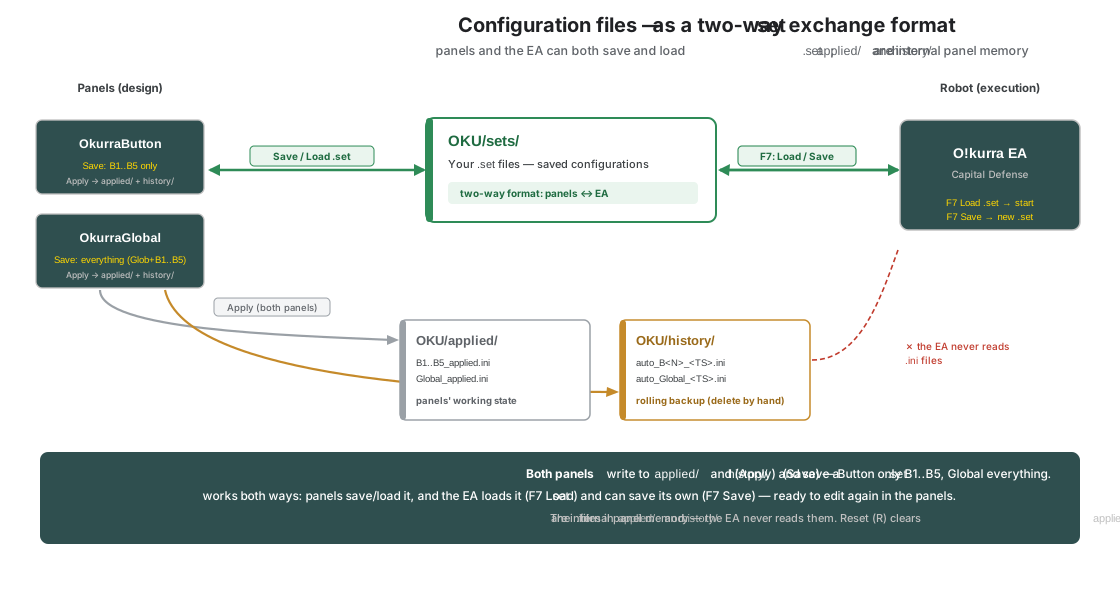
The same in words: only .set files from sets/ reach the EA; history/ holds the OkurraButton auto-copies and presets, applied/ the panels’ working state, ea_memory/ the robot’s memory, and diag/ the robot’s journals, from 2.05 separate for every robot (the name carries the chart’s symbol and the Magic base from F7).
Four things worth remembering:
- Only a
.setfromsets/reaches the EA. The.inifiles inhistory/andapplied/are the panels’ internal memory — the robot never reads them (chapter 2.6). One nuance: the EA writes its own preview files to the subfolderapplied/viz/— the companion indicators on the EA’s chart read them (to show what the robot actually sees); this is traffic in the other direction, the EA still loads nothing fromapplied/as configuration. - The working-state file names carry a chart suffix. The files in
applied/are namedB<N>_c<id>_applied.ini/Global_c<id>_applied.ini, where<id>is a shortened chart identifier — thanks to this, two charts of the same instrument do not mix up each other’s design state. Worth remembering when you look for the files by hand. - The history (
history/) is a safety net. On every Apply OkurraButton appends a copy of the button being applied there, and on a.setload a copy of every button loaded. Thanks to this, you can go back to an earlier design state even if you did not save it as a.set. From 2.05 the panel tidies the auto-copies itself: it keeps the 10 newest per button and deletes the older ones when it writes the next one (the Experts journal line[OkurraButton] SaveAppliedToFile(B1): auto-save history pruned - 5 older file(s) removed, newest 10 kept). The first such write after updating to 2.05 deletes all older auto-copies of that button except the 10 newest. Saves you have named in thePdialog (manual_...) have no limit and the panel never deletes them on its own — name an auto-copy you want to keep before the next Apply. From 2.05 OkurraGlobal no longer writes theauto_Global_...copy — no program ever read it; files from earlier releases stay until you delete them. Up to 2.04 the history was never cleaned and grew without end. - Reset (
R) in the panel does not touch the history. Reset clears the working state (applied/), buthistory/remains — so even after a reset you have something to recover the configuration from (chapter 4.8).
7.6 Loading into the EA (F7 → Load)
This is the final step of the bridge: moving the designed configuration into the running robot. It happens in the EA itself, via the standard MetaTrader mechanism — there is nothing Okurra-specific here except that you point to the previously saved .set file.
Step by step:
- Open the EA configuration window. On the chart with the running (or freshly dropped) EA press F7 — or right-click on the chart → Expert Advisors → Properties. A window opens with the Inputs tab.
- Click
Load(the button at the bottom of the MT5 configuration window). - Point to the
.setfile fromOKU/sets/— the one you saved in the panel (preferably the full one, from OkurraGlobal). - Confirm with
OK. The EA starts (or restarts) with the loaded configuration — all global settings and all five buttons at once.
A reminder from chapter 2.7. The design panels and the EA work on separate charts. You save the
.setfile on the design chart (with the panels), and you load it on the execution chart (with the EA). It is a deliberate transfer — the robot changes its configuration only when you load a.setyourself, never “live” from the panel.
.setworks both ways. The EA can not only load a.set, but also save its current settings to a.set— with the native Save button in the same F7 window (a MetaTrader standard). Such a file has exactly the same parameter names as a.setfrom the panels, so you can load it back into OkurraButton/OkurraGlobal (Load), modify it on the design chart and save it as a new.set. Thanks to this, the.setis a fully-fledged, two-way exchange format between the panels and the robot — not just “panel → EA”. (It is still transfer by files, not a live connection — chapter 2.7.)
Sets from before release 1.28 — how they migrate. The new fields (Extreme Mode, Filters Mode, the OKUR bounce rows) take their default values when an old file is loaded, i.e. behavior exactly as before 1.28 — with one exception: if the old set had “Keep Extreme Across Zone Exits” enabled (a field removed in 1.28), that setting migrates only through the panel. Load such a file into OkurraButton (Load) — the panel translates the old key into Extreme Mode = Keep Across Exits — then Apply and Save produce a file in the new format. Loading the old file straight into the EA via F7 silently skips that key and the button falls back to Classic (MetaTrader ignores unknown names without a warning). Chapter 9.6.
7-button sets (from before release 2.00) — how they migrate. The
B6_*/B7_*keys are silently skipped on load (like any unknown names), and the B1–B5 strategies from the file work unchanged. One thing is actively tidied up in the process: a trigger target pointing at the former B6/B7 — the EA ignores it and writes a message about the non-existent target to the journal, and the Button panel cleans such a target already when the file is loaded, so it never carries into new saves. Two changed factory defaults (the EA starts with its switch OFF; the Price Movement sensors are factory-disabled) affect sets that do not contain those keys — the full checklist for updating: chapter 3.5.
The schema stamp warning. A set from the Set Creator — and, from 2.05, also a set saved from the OkurraGlobal panel — carries the
SetSchemaRevkey, that is the number of the input schema it was built for. On load the robot compares it with its own and warns with a popup in two cases, never blocking: a file older than the last change to the input list (“This .set predates a parameter change in Okurra…” — the file does not carry the parameters added since, so check them in the F7 window) or a file from a newer release than the robot (“This .set was generated for a NEWER Okurra release…” — settings this robot does not know MetaTrader will not load; update the EA). In the Experts journal:[OKU SchemaStamp] Set stamped N; this EA: schema S, build B - …. A new robot build alone, with no change to the input list, does not trigger the warning (since EA 2.03 rev 0264). A file without a stamp (0) is not checked.
The stamp of a set from the OkurraGlobal panel (from 2.05). The Save button in OkurraGlobal writes
SetSchemaRevinto the file. In release 2.05 it is6150319— the number of the input schema the panel was built for. Every save gets the stamp, also when a set loaded into the panel earlier had a different stamp or none at all. The number does not depend on the robot you work with — the keys in the file are decided by the panel that saved it. Such a set loaded into a 2.05 robot passes without a warning. Loaded into a robot of an older release, e.g. 2.04, it brings up the popup “This .set was generated for a NEWER Okurra release than this one. It loads, but settings unknown to this build are ignored - update the EA.”, and in the Experts journal the line[OKU SchemaStamp] Set stamped 6150319; this EA: schema …, build … - the set was built for a NEWER release, keys unknown to this build are dropped. Up to 2.04 the panel carried the stamp of the loaded file, and a set from a fresh panel had 0, so the robot did not check it. A set from the OkurraButton panel has no stamp — it saves the buttons only.
Iteration. When, after observing on a demo, you want to change the strategy: you go back to the panels, adjust, save a new .set, and load it into the EA (F7 again). The old .set stays in sets/ as an archive — you can come back to it and compare.
7.7 Practice: naming and managing variants
The .set is your research archive — a few habits will make sure that two weeks from now you still know what is what:
- Give descriptive names right at save time. Instead of
Button_20260613_142205.set, type something in the save dialog that describes the content:XAUUSD_meanrev_M1_v1,NAS100_momentum_3butt,hedge_symetryczny_test. The name is the first thing you will see in the Load dialog. - Version manually with a suffix. When you iterate on the same idea, append
_v1,_v2,_v3. Do not overwrite the previous version — let it remain as a reference point. This is a “manual history” of variants, more readable than the auto-copies inhistory/. - Keep one “full” file per setup. It is most convenient to operate with full files from OkurraGlobal (Global + B1…B5) — one file = the robot’s entire configuration. Leave the “strategies only” files from OkurraButton for deliberate cases (one global set, many button sets).
- Name in
history/what you want to keep. From 2.05 OkurraButton keeps only the 10 newest auto-copies per button and deletes the older ones itself. Name an auto-copy you want to come back to in thePdialog (it becomesmanual_..., with no limit) or save the variant as a named.set. By hand you now clean up only the named saves and oldauto_Global_...copies from before 2.05. - Note what a given
.setwas meant to show. The file says how you configured, but not why. A short note (“v3 — deeper threshold, fewer signals, trend test”) alongside the demo observations completes the picture. You can also add your own description to the comment header of the file in a plain text editor — it is pure text, after all.
All of this makes up the work rhythm with O!kurra: design in the indicators → save the .set → load into the EA → observe on a demo → return to designing. The .set file is the axis of this cycle — and your archive of what you have learned.
7.8 The license key and .set files
The EA’s license key (the LicenseKey parameter, chapter 3.7) may — but does not have to — travel in a .set file. It is worth knowing which file carries it and what happens on load:
Which file contains the LicenseKey line:
- A full
.setfrom OkurraGlobal — contains aLicenseKey=line only when the panel holds a key in memory, i.e. when one arrived from the most recently loaded file. The Global panel does not verify the key (the indicators are free) — its key field is only a preview. A panel without a key omits the line, so such a set loaded via F7 leaves the robot’s key untouched. - A “strategies-only” file from OkurraButton — never contains the key (the global section is not saved).
- The factory sets of releases (
Okurra-Defaults-<version>.set) and sets from the Creator — deliberately do not contain theLicenseKeyline at all.
What happens on loading via F7 → Load:
- If the file contains a
LicenseKey=line (even an empty one), its value overwrites the key field in the EA window. An empty line = the key is cleared — at startup the EA will show the alert “Enter your License key in EA inputs” and will not obtain a valid license. - If the file does not contain that line, the key field remains untouched — the key you pasted earlier survives the load. That is why the factory and Creator sets omit this line.
Files saved by a panel older than OkurraGlobal 2.04. An older panel whose key field had never been filled could write the placeholder text LicenseKey=(null) instead of an empty value. Loading such a file via F7 replaced the robot’s key with that text, and the license server answered with the alert “Invalid license key format”. From OkurraGlobal 2.04 the panel never writes such a line, and the EA from rev 0272 treats (null) as an empty key (alert “Enter your License key in EA inputs”, plus an Experts journal entry about the placeholder). If you have such a file, remove that line from it or paste the key again after loading.
Nothing permanent and nothing dangerous. A cleared key is a local inconvenience — just paste it again (the license lives on the okurra.com server, bound to your account). And even if your key “traveled” in a file you shared: the key works only on the MT5 account numbers assigned to it in the okurra.com panel — on someone else’s account it will not pass verification.
A hygiene rule when sharing sets: before you share a file saved from OkurraGlobal, open it in a text editor and remove the LicenseKey=... line (or at least its value). You do not share your key — and you spare the recipient the surprise of their own key being cleared after loading your file.
7.9 The position ownership registry and restarts
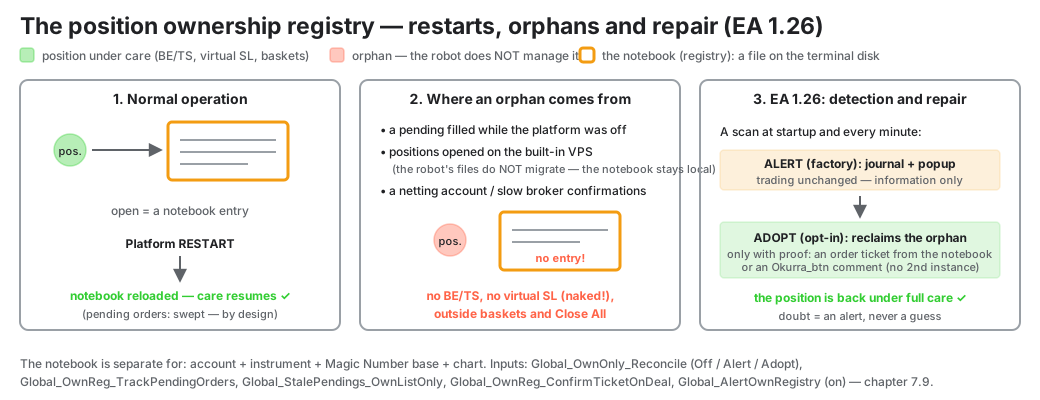
A robot running in “own-only” mode (Global_MonitorOwnOnly, chapter 5.5 — the factory behavior) keeps a private notebook of its positions: on every open it writes the position number to a small file on the terminal disk. After a platform restart, an F7 reload or a recompile, the EA reads that notebook back and takes care of exactly the positions it opened itself — a sibling instance on the same symbol is never touched. The notebook is separate for each combination of account + instrument + Magic Number base + chart.
What this means in practice:
- A plain platform restart is safe. The notebook survives; the positions come back under full care (BE/TS, virtual SL/TP, baskets, Close All).
- Pending orders do NOT survive a restart — by design. The pending watch-list lives only in the robot’s memory. After every restart the EA sweeps its own leftover broker pendings so that a stale, no-longer-supervised setup cannot fire days later. Since EA 1.26 you get a notification about it (previously this happened silently — hence the “the robot cut my orders after a restart” reports).
- The orphan position. If a position carrying the robot’s Magic Number is missing from the notebook, an own-only robot does not manage it: no Break Even or Trailing, no virtual SL/TP (with Virtual SL enabled such a position is naked — the stop does not exist at the broker either!), excluded from the BEa basket and the account guards, and Close All will not close it. Where orphans come from:
- a pending order filled while the platform was off (e.g. a weekend gap) — the notebook entry never had a chance to be written;
- positions opened in another environment — the built-in MetaTrader VPS does not migrate the robot’s files (the files folder stays on your computer), so the VPS and the local machine keep separate notebooks;
- more rarely: a netting account or slow broker confirmations recorded a wrong number in the notebook.
New in EA 1.26 — detection and repair:
| Input (F7) | Factory | What it does |
|---|---|---|
Global_OwnOnly_Reconcile | Alert | A scan at startup and every minute: every orphan goes to the journal. An individual popup is reserved for an orphan with an ownership proof (it truly is your lost position — rare and critical); the remaining cases — most often a foreign EA using magics from the robot’s range — share one summary popup per session, so notifications never flood the screen. Alert = information only, trading unchanged. The Adopt mode additionally takes the orphan back under care — strictly with an ownership proof (a recorded order ticket, or an Okurra_btn trade comment while no second live instance claims the same MN base). Ambiguity is never guessed — you get an explanatory alert instead. |
Global_OwnReg_TrackPendingOrders | off | Also records the ticket numbers of placed pending orders in the notebook. A position born from a “filled-while-away” pending then carries hard ownership proof, and Adopt reclaims it reliably. |
Global_StalePendings_OwnListOnly | off | The post-restart sweep cancels only pendings present in the notebook (protects a sibling instance when MN ranges overlap). Requires the ticket recording above. |
Global_OwnReg_ConfirmTicketOnDeal | off | For netting accounts / slow fills: the notebook entry is finalized from the broker’s deal confirmation (repairs a wrong entry and re-points the virtual SL/TP as well). |
Global_AlertOwnRegistry | on | Popups (and push, if enabled) for registry events: an orphan detected, pendings swept after a restart, a MagicBase ≤ 0 warning. The only alert enabled at the factory — purely informational. |
VPS and a second terminal — one iron rule. On a single account, a given Magic Number base should have one active robot at a time. The built-in MetaTrader VPS enforces this by itself (a chart “moved” to the VPS stops working locally), but remember: the robot’s files do not migrate — after every migration the VPS notebook starts fresh (the first start auto-adopts positions by MN), and the local notebook knows nothing about positions opened on the VPS. After coming back from the VPS you will see orphan alerts — that is exactly this mechanism at work; switch reconcile to Adopt (or use the one-shot
Global_OwnOnly_AdoptExisting) and the robot takes them back.
Magic Number 0. Setting
Global_MagicBase=0makes the first button trade with MN = 0 — the same value manually opened positions carry (reports then show an empty magic column). The robot and the human become indistinguishable. Since 1.26 the EA warns loudly about this; keep the base ≥ 1, with at least 5 between instances.
This closes the designing part (chapters 4–7). In the next chapter we move to execution — starting with the full anatomy of the EA control panel: what you see on the chart after loading the configuration and starting the robot, and how to steer it tactically during operation.